
Apple key for Bloxks Pay
Create your Apple in-app purchase key (.p8 file) and drop it in Bloxks: the only step Bloxks Pay needs from you.
Bloxks Pay checks every purchase of your app directly with Apple. To do so, it needs an in-app purchase key: a small .p8 file that Apple lets no tool create for you. It takes 2 minutes, and one key is enough for all your apps.
Before you start
You need the Account Holder, Admin or App Manager role on the Apple Developer account.
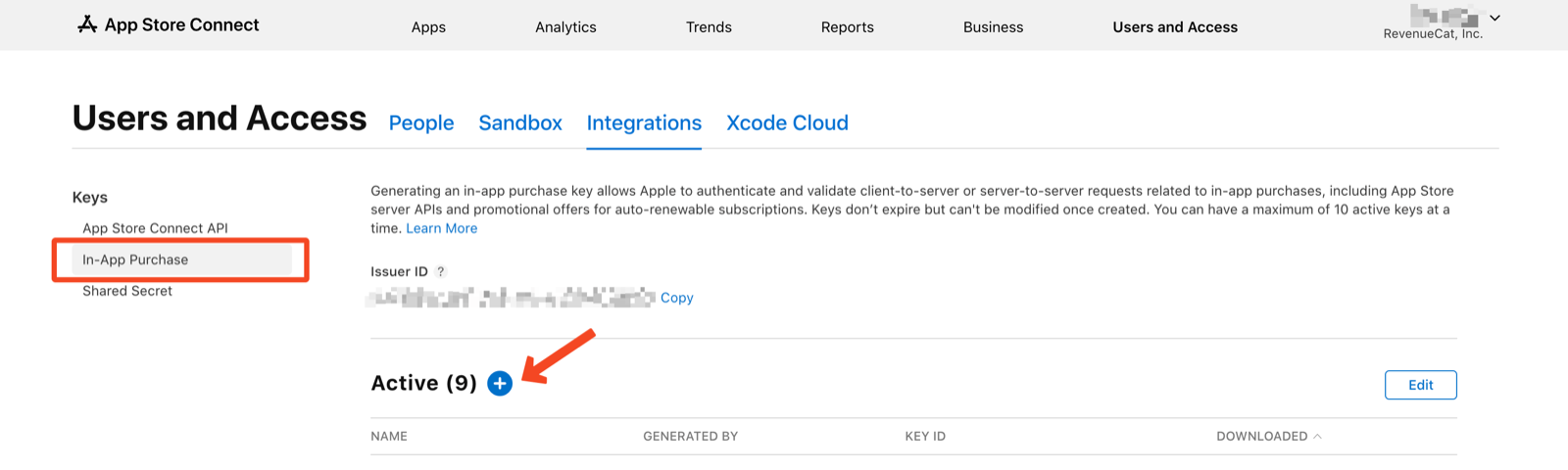
Step 1: open the In-App Purchase keys page
- Open App Store Connect, then Users and Access, then the Integrations tab.
- In the left column, under Keys, click In-App Purchase.
- Click the + next to Active.
Step 2: name the key and generate it
Type a name only you will see, for example Bloxks Pay, then click Generate.
Step 3: download the .p8 file
On the new key’s line, click Download In-App Purchase Key. A SubscriptionKey_XXXXXXXX.p8 file lands in your Downloads folder.

Apple offers this file only once: keep it somewhere safe, and do not rename it (its name holds the key ID).
Step 4: drop it in Bloxks
Two places, same result:
- Integrations → Bloxks Pay: click Drop the .p8 key;
- or the Monetization tab of your project, Bloxks Pay card: click Upload the .p8 file.
That’s it. The key is saved to your account and serves all your apps. Registering your app with Bloxks Pay and the Apple notification address happen on their own when you publish.
If it doesn’t work
- “This file is not an Apple .p8 key”: you picked another file. Use the one downloaded from In-App Purchase (not App Store Connect API).
- The download link is gone: Apple offers it only once. Generate a new key and start again at step 1.
- Apple refuses a new key: you can have at most 10 active keys. Revoke one you no longer use.
- Keep the .p8 file private: never paste it in the Bloxks chat or in your app’s code.
Back to the Bloxks Pay guide.