
Google Play
Let Bloxks publish your app to the Google Play Store for you.
Official Google Play docsWhat is Google Play?
Google Play is where Android apps get published. Its control room, the Play Console, is where you manage your app, and a companion service account lets Bloxks act there on your behalf, from build to release.
What it unlocks in Bloxks
- One-click publishing: Bloxks compiles your app, uploads it to Google Play and pushes it to the track you chose, end to end.
- Complete Play Store listing: title, short and full description, screenshots. Bloxks prepares everything.
- Testing tracks: ship to internal testing first, then to production.
- Updates: every time you improve your app, ship a new version without leaving Bloxks.
What you need first
A Google Play Developer account (25 USD, one time). It is Google’s mandatory pass to publish on the Play Store, whatever tool you use.
Your app also has to exist in Play Console before Bloxks can publish to it: Google does not allow creating an app record through its API.
Connect Google Play to Bloxks
The JSON file is not a Google password and does not log you into the Play Console. It is a private technical key for a service account: it lets Bloxks authenticate to Google’s publishing API on your behalf, without storing your personal Google credentials. Anyone holding this file can act with the permissions you grant it, so never share it or commit it to Git.
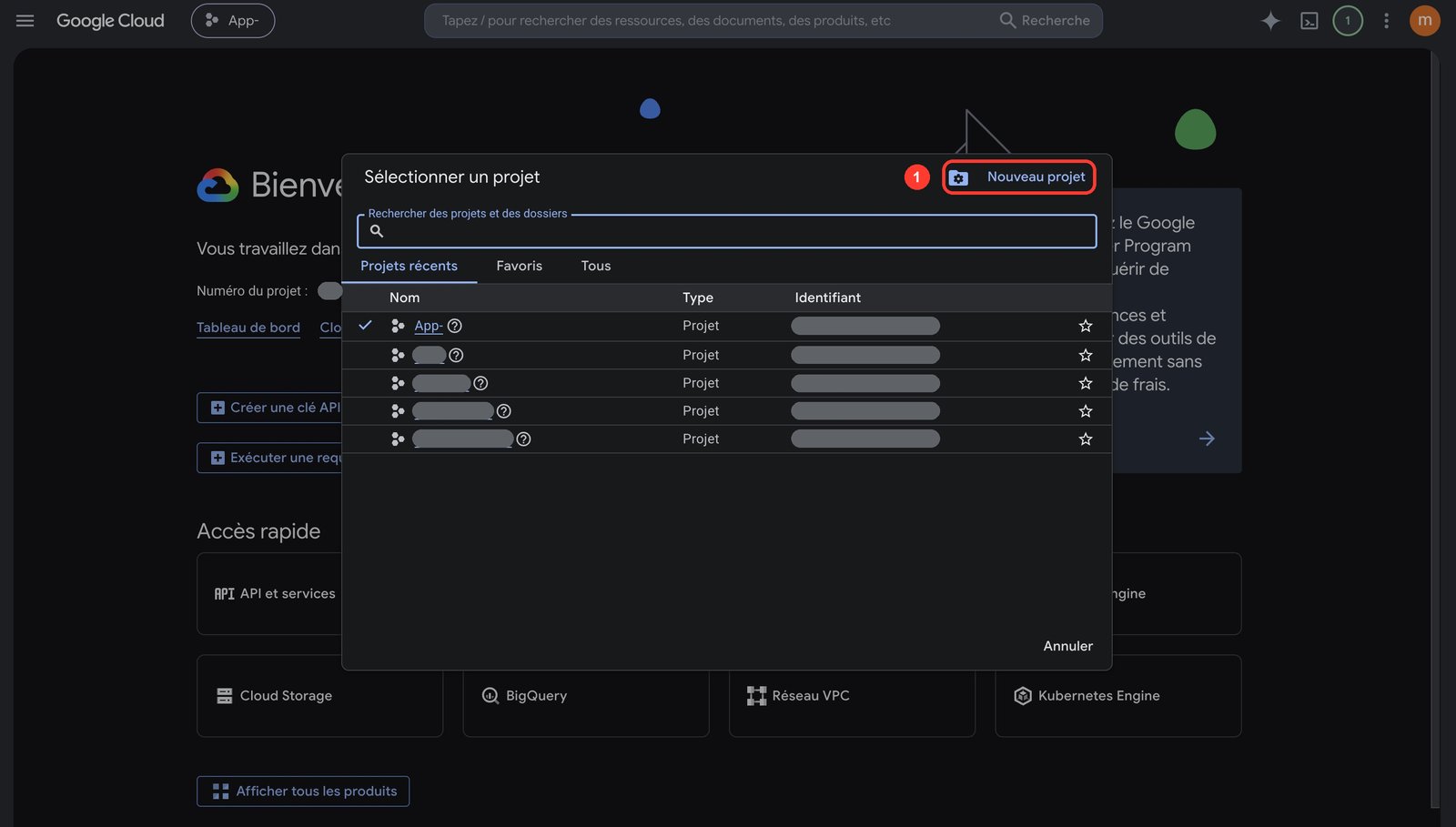
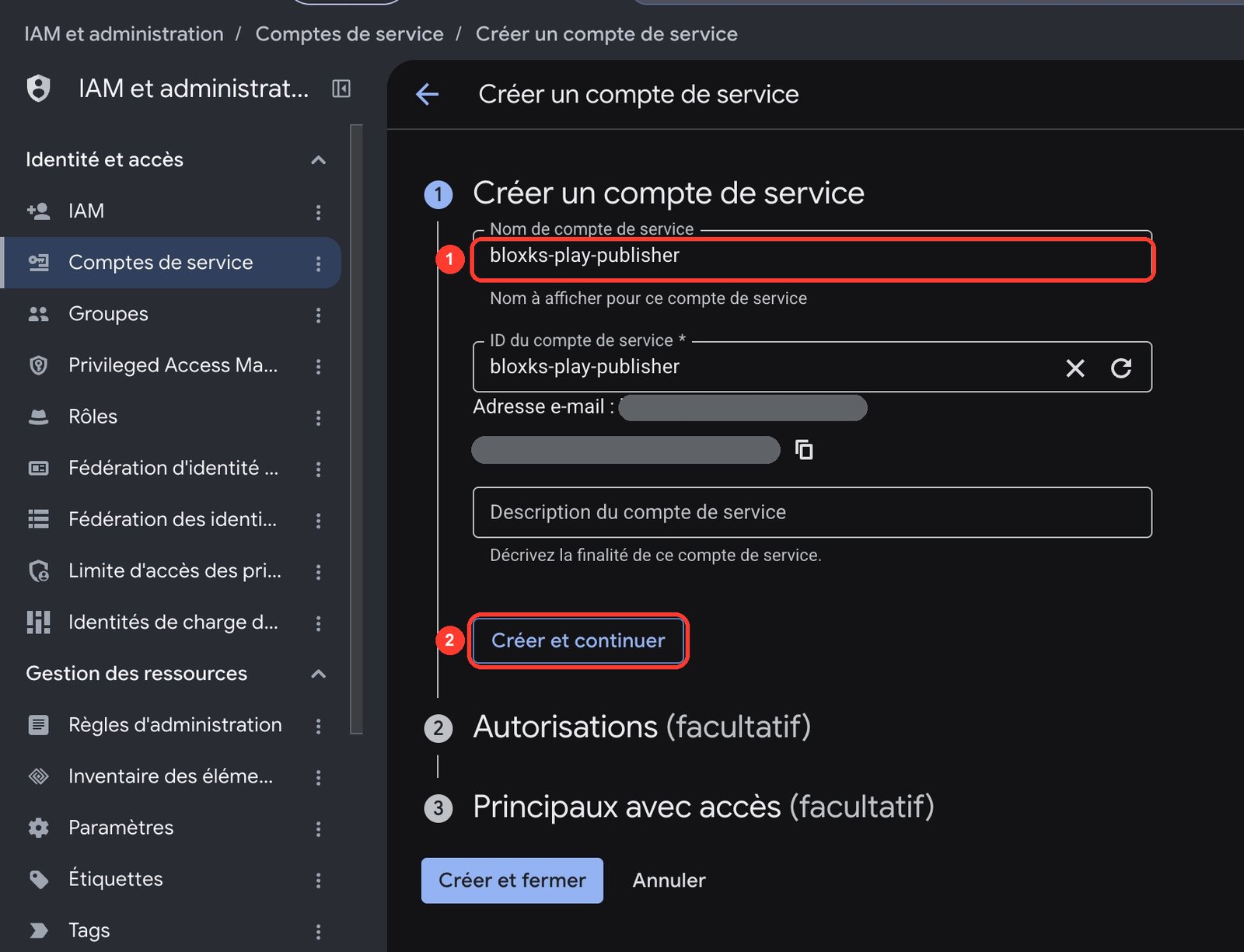
In Google Cloud, select an existing project or create a dedicated one. Open IAM & Admin → Service Accounts, then select Create service account. Give it a clear name such as bloxks-play-publisher. At the access step, grant it the Pub/Sub Editor and Monitoring Viewer roles: they are used by renewal notifications if your app sells subscriptions.
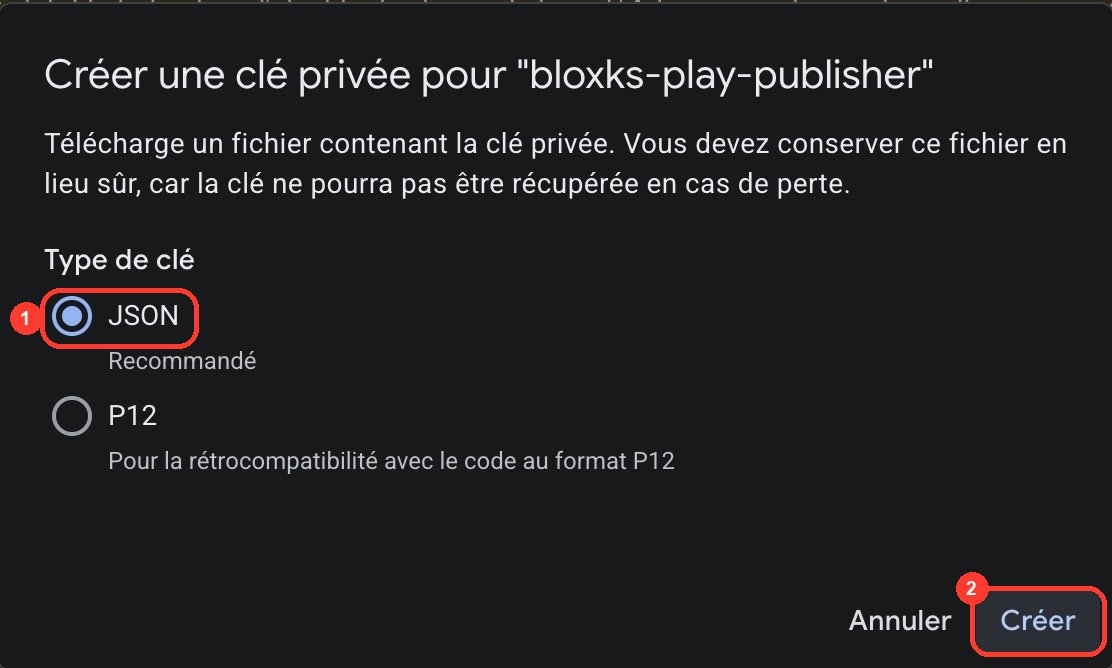
Open the new service account, select Keys → Add key → Create new key, choose JSON, then download the file. Google shows this private key only at creation time; store it in a password manager or a secure vault.
Enable the API in the same Google Cloud project:
- Click this direct link: Google Play Android Developer API. If your app sells subscriptions, also enable the Google Play Developer Reporting API and the Cloud Pub/Sub API, the same way.
- At the very top of the Google Cloud page, open the project selector. Select the project in which you just created the service account. If Google shows a project-selection dialog first, choose that project there.
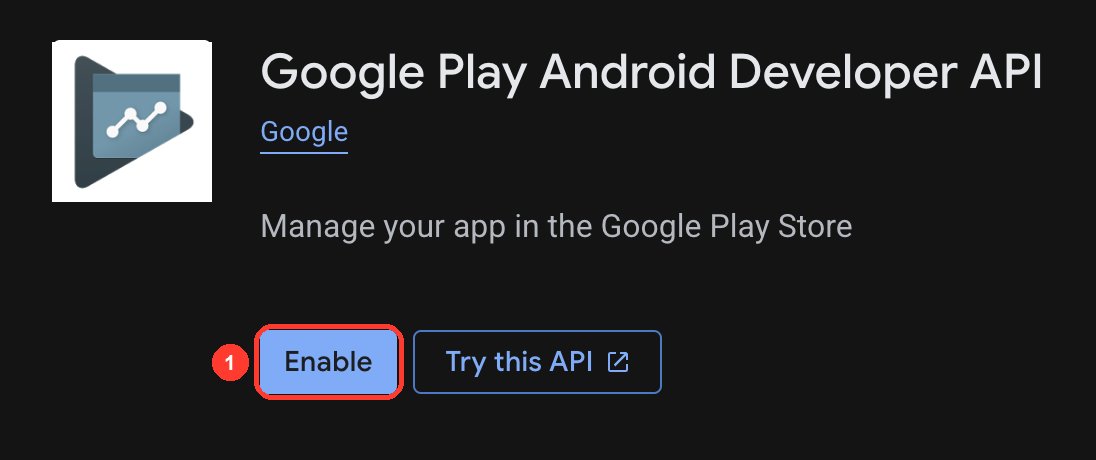
- On the API page, click the blue Enable button. Wait a few seconds for Google to finish enabling it.
- You are done when the button is replaced by Manage (or when the page says API enabled). If you already see Manage, do not click anything: the API is already enabled for this project.
- Do not create an API key, OAuth client, or another credential on this screen. The service-account JSON file from step 2 is the credential Bloxks needs. If the Enable button is disabled or missing, ask the owner of that Google Cloud project to grant you permission to enable APIs.
Create the app manually in Play Console if it does not already exist. Its package name must match your Android build exactly (for example com.yourcompany.yourapp).
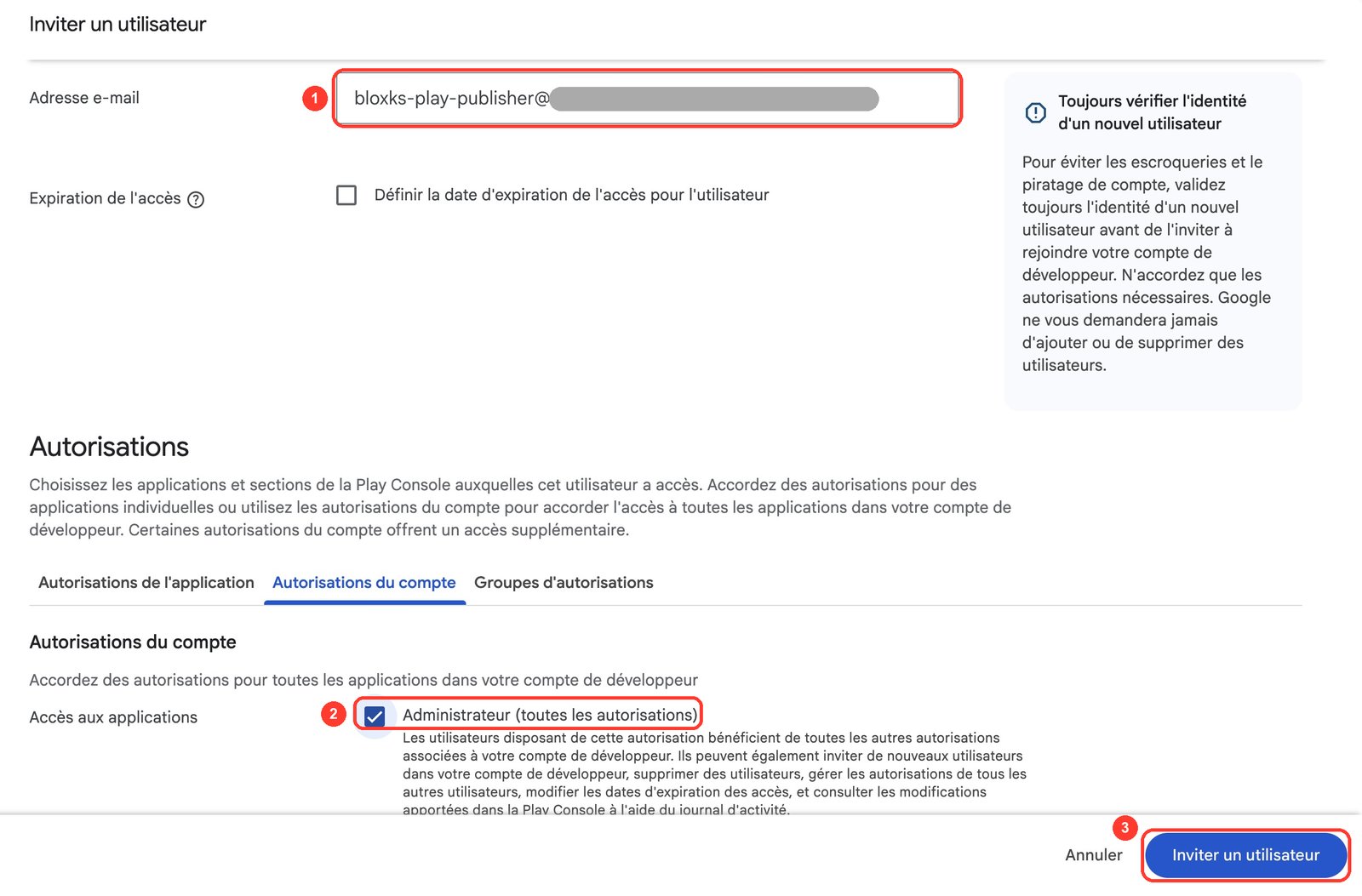
Open Google Play Console, which is a separate website from Google Cloud. In Users and permissions, invite the service account’s email address (it ends in iam.gserviceaccount.com; the Bloxks guide shows it with a Copy button), then under Account permissions tick Admin (all permissions): it covers every current and future app. Prefer the bare minimum? Four account permissions are enough instead, listed in Set up your Google Play account.
In Bloxks, open Connections → Google Play → Add connection: a 5-step guide walks you through the same screens, imports the JSON file and shows the service account address to invite. Each app’s package name is then read from its build when you publish.
Good to know
- Your JSON key is encrypted on our servers and only used to talk to Google for you. It is never shown again.
- Connect once, publish every app: the same service account works for all your Bloxks projects.
- If your developer account is new, Google requires a closed test with at least 12 testers over 14 days before you can release publicly. Bloxks publishes to a testing track first, so you can start that clock right away.
- Google’s review is mostly automated and usually takes a few hours to 3 days, longer for a brand new account.
- Selling subscriptions? Google creates paid products only once your payments profile exists and your first build is on the internal testing track. RevenueCat also needs this same JSON file to validate purchases: Bloxks gives it to RevenueCat for you when you publish. Step by step: Paywall and subscriptions.
Want to go deeper? Read the official Google Play Developer API docs.
Go further
The pages of this documentation that use Google Play.
Set up your Google Play account
Developer account, payments profile, service account and permissions: everything Google asks before your Android app can sell.
Test purchases on Android
Make your Android test purchases free, and fix an empty paywall: license testers, opt-in URL and phone settings.
Publish to the App Store
Bloxks prepares your listing, generates the screenshots and submits your app to Apple.
Frequently asked questions
Google lets no tool create an app listing on your behalf. Once it exists, Bloxks handles the rest.
A Google rule for recent personal accounts: before any public release, your app must be tested by 12 people for 14 days in a row.
Your address is not an active license tester, or you never opened the track’s opt-in URL on the phone. See Test purchases on Android.
No. It is a technical key for a service account, which lets Bloxks publish on your behalf. Keep it private and never share it.
Google only creates paid products once your first build is on a testing track and your payments profile exists — and a new service account takes up to 36 hours to be accepted. See Set up your Google Play account.