
Apple notifications
Let Apple warn RevenueCat the moment a subscription renews, is cancelled or refunded. One click in RevenueCat.
Apple notifications (App Store Server Notifications) are messages Apple sends to RevenueCat every time something happens to a purchase: a renewal, a cancellation, a refund, a failed payment. It is a setting of your app in App Store Connect, and RevenueCat applies it for you in one click.
What they are for
Without them, your subscriptions still work: RevenueCat learns the news the next time the user opens the app. With them, it learns it right away:
- a refunded buyer loses their premium access at once, instead of keeping it until the next opening;
- the numbers in your RevenueCat dashboard (revenue, cancellations, renewals) are up to date within minutes;
- they are required if you sell a lifetime purchase or a one-off purchase: otherwise, a refund might never remove access.
That is why Bloxks marks them as recommended: not blocking, but worth the 30 seconds.
Before you start
- Your app must exist in RevenueCat. Bloxks creates it on your first publication with a paywall, or when you link RevenueCat in the Paywall tab.
- In the Paywall tab, the Open RevenueCat link of the Apple notifications line takes you straight to the right app.
One click in RevenueCat
- Open the RevenueCat dashboard, then your project, then under Apps the App Store app (the one with your iPhone app’s bundle ID).
- Scroll down to Apple Server to Server notification settings.
- Click Apply in App Store Connect.
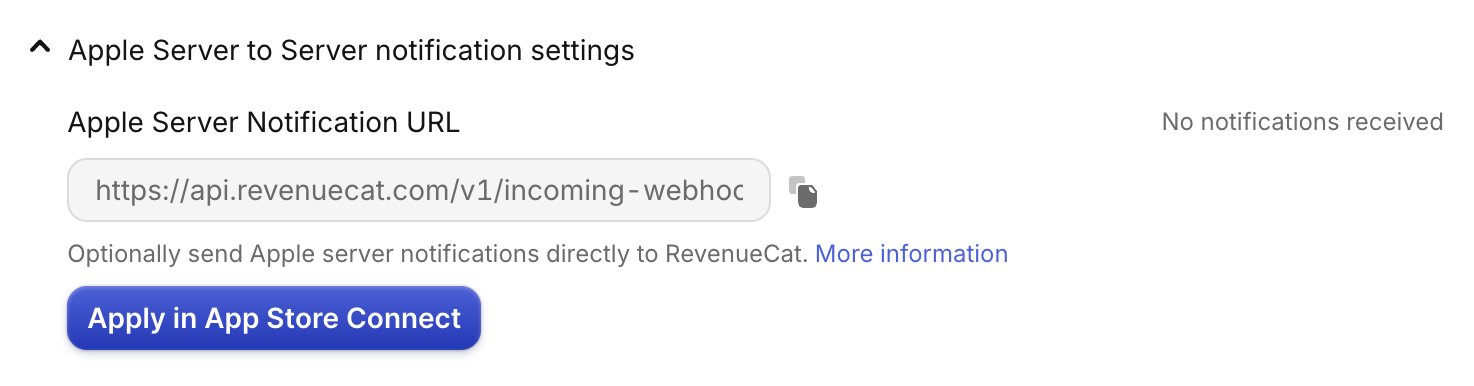
RevenueCat writes its address in App Store Connect, for real purchases (Production) and for test purchases (Sandbox). Nothing else to do.
Or: do it yourself in App Store Connect
If the button is greyed out or returns an error:
- In RevenueCat, on the same section, copy the whole Apple Server Notification URL with the copy icon.
- Open App Store Connect, then your app, then App Information in the left column.
- Find the App Store Server Notifications section.
- Paste the URL in Production Server URL, choose Version 2, and save.
- Do the same for Sandbox Server URL, with the same URL and Version 2.
Check that it works
- In Bloxks, the Apple notifications line of the Last mile card goes to done: Bloxks reads the setting directly from Apple.
- In RevenueCat, at the top right of the section, No notifications received changes to the date of the last notification after your first test purchase from TestFlight.
If it doesn’t work
- The button returns an error: RevenueCat could not reach App Store Connect for this app. Use the manual method above: it gives the same result.
- Another URL was already there: Apple accepts only one address. If another tool used it, replace it with RevenueCat’s: RevenueCat can forward notifications to your other tool (Apple Server Notification Forwarding URL field, same section).
- Bloxks still shows the line as to do: reopen the Paywall tab after a minute, the check is done on every opening.
Good to know
- The setting is per app: repeat it for each app that sells.
- It changes nothing in your app’s code and requires no new publication.
Source: RevenueCat official guide, from which the screenshot on this page is taken.