

AdMob
Show Google ads in your app and earn money when people see or tap them.
Official AdMob docsWhat is AdMob?
AdMob is Google’s ad network. You set aside a few spots in your app, and Google fills them with ads from its advertisers. Each time people see or tap one of these ads, you earn a little money. Your app stays free for your users.
Source: Wikimedia Commons, Nagle, CC BY-SA 4.0, cropped
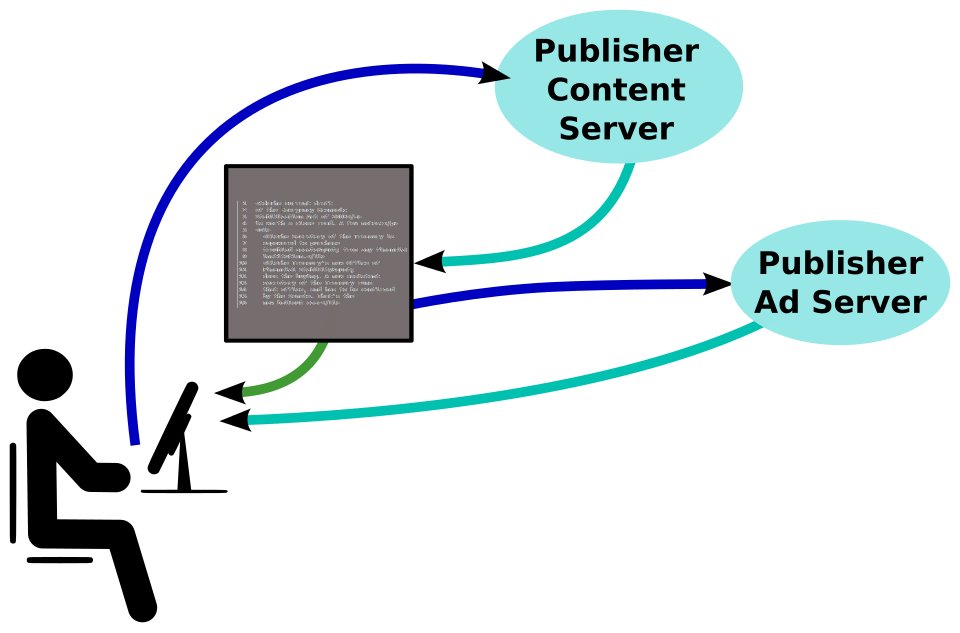
In practice, your app loads its screens as usual, and each ad spot asks Google for an ad. Google picks one and your app shows it. You don’t choose the ads one by one: Google does, from its advertisers.
How you get paid
- Your earnings add up in your AdMob account, and Google pays once a month.
- Google pays once your balance reaches the payment threshold: 100 USD, or 70 EUR if you are paid in euros. Below that, your earnings carry over to the next month.
- Before your first payment, Google asks you to confirm your identity and add your bank details.
- When your earnings reach 10 USD, or 10 EUR if you are paid in euros, Google mails a PIN code to your postal address. Enter it in AdMob within 4 months: otherwise, Google stops showing ads in your apps.
Official details: Payment thresholds, Steps to getting paid, Address verification (PIN).
The 3 ad formats in Bloxks
- Banner: a strip at the bottom of a screen, or at the end of a content screen. It stays discreet and never sits against your buttons.
- Full-screen ad: it covers the screen after a finished step, like the end of a level. To protect your users, Bloxks never shows one in the first 30 seconds, nor less than 60 seconds after the previous one.
- Rewarded video: an optional button says what you get, like "Watch a video for +1 life". The reward is given only if the video is watched to the end. It is always something inside your app, never money.
Bloxks does not offer ads when the app opens, nor ads disguised as your own content: they annoy users the most and are the most often refused.
What Bloxks does for you
- Writes the ads into your app from a ready-made Bloxks module, as soon as you ask in the chat.
- Shows placeholders in the preview, clearly labelled, so you can place your ads without any risk.
- Asks for consent where the law requires it, then Apple’s tracking question on iPhone, before the first ad.
- Prepares publication: Google’s ad library, the texts and declarations Apple and Google require, and a check of your IDs. If something is missing, publishing stops with a clear message, rather than shipping an app that earns nothing.
- Hosts the app-ads.txt file, which proves to Google that the ads in your app are yours.
What you do, in 4 steps
- Create your AdMob account and your app.
- Create your ad units and copy their IDs.
- Paste your IDs in Bloxks and ask for ads.
- Publish your consent message, then publish your app with ads.
Before you publish, read the placement rules: they keep your AdMob account safe. No ads showing? See Troubleshoot your ads.
Want to go deeper? Read the official AdMob help.
Go further
The pages of this documentation that use AdMob.
Create your AdMob account
Create a free AdMob account, then add your app once for iPhone and once for Android.
Create your ad units
Create one ad unit per format your app uses, copy its ID, and find your App ID.
Add ads to your app
Paste your AdMob IDs in the AdMob card, ask the chat for ads, and see them as placeholders in the preview.
Consent and Apple tracking
GDPR consent and Apple’s tracking question: what your users see, the message to publish once in AdMob, and the Ad privacy row.
Publish an app with ads
What Bloxks adds on its own, the two Google Play answers to give by hand, and app-ads.txt.
Troubleshoot your ads
You don’t see any ads in your published app? Find out why, and check your ads without risking your AdMob account.
Ad placement rules
Where to place your ads, and where to avoid them, so your AdMob account stays safe.
Frequently asked questions
That’s normal. In the builder preview and in Expo Go, ads are placeholders: the banner is marked "Ad" ("Ad banner · Bannière de pub"), full-screen ads "Ad · Pub". Real Google ads only appear in the published app. See Paste your IDs and ask for ads.
The usual reasons: a new ad unit (up to 1 hour), an app not yet reviewed or linked to its store listing in AdMob, a consent message not published, or app-ads.txt not verified yet. The full checklist: Troubleshoot your ads.
Yes. If your store listing already points to your own website, the app-ads.txt file must be placed on that website. The line to add: see Publish an app with ads.
Not with this module. Apple forbids third-party ads in the Kids category, and Google Play requires special certified settings for apps aimed at children. See Placement rules.
Nobody can promise you an amount. It depends on how many people use your app, how often, in which countries, and on the formats you choose. Start with a few well-placed ads, then follow your earnings in AdMob’s reports.
Never on real ads: Google treats it as invalid activity and can close your account. Declare your phone as a test device instead. See Troubleshoot your ads.