
Import your RevenueCat subscribers
Leaving RevenueCat? Export your transactions and drop the file in Bloxks Pay: every subscriber keeps their access.
Your app already sells subscriptions through RevenueCat and moves to Bloxks Pay? Bring your current subscribers along with a single file. Bloxks Pay re-checks every purchase with Apple or Google before giving access back: the file is only a list to check, nobody gets access just because a line says so.
Before you start
- RevenueCat plan: Scheduled Data Exports are available on accounts created since September 2023, and on Pro and Enterprise plans.
- One RevenueCat project = one file. If your app has several projects, repeat the steps for each.
- The RevenueCat dashboard exists in English only, so the buttons below keep their English names.
Step 1: open Scheduled Data Exports
In RevenueCat, open your project, then Integrations › Scheduled Data Exports.
Step 2: choose the email export
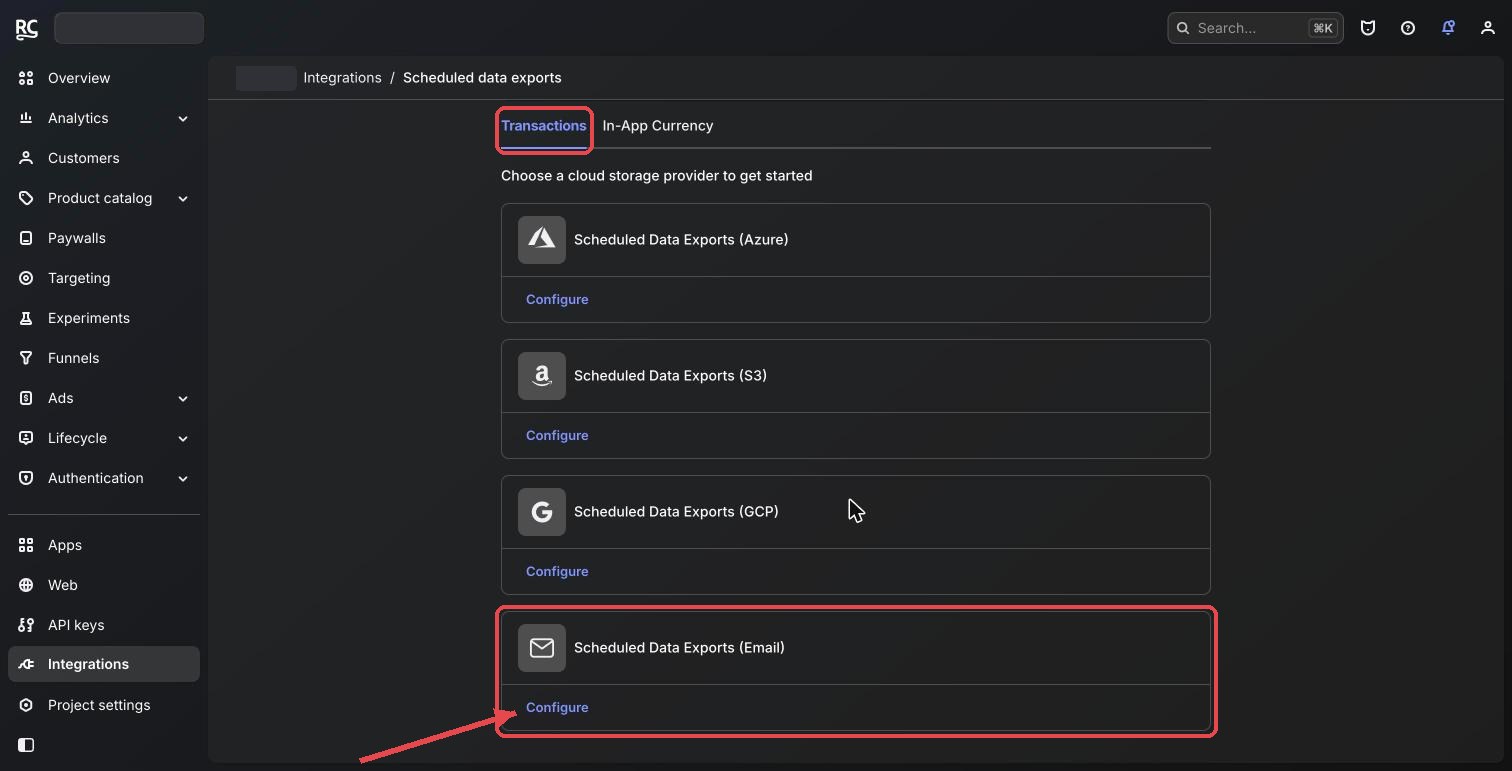
Stay on the Transactions tab, then click Configure under Scheduled Data Exports (Email). No storage bucket needed: the file comes by email.
Step 3: keep the default columns
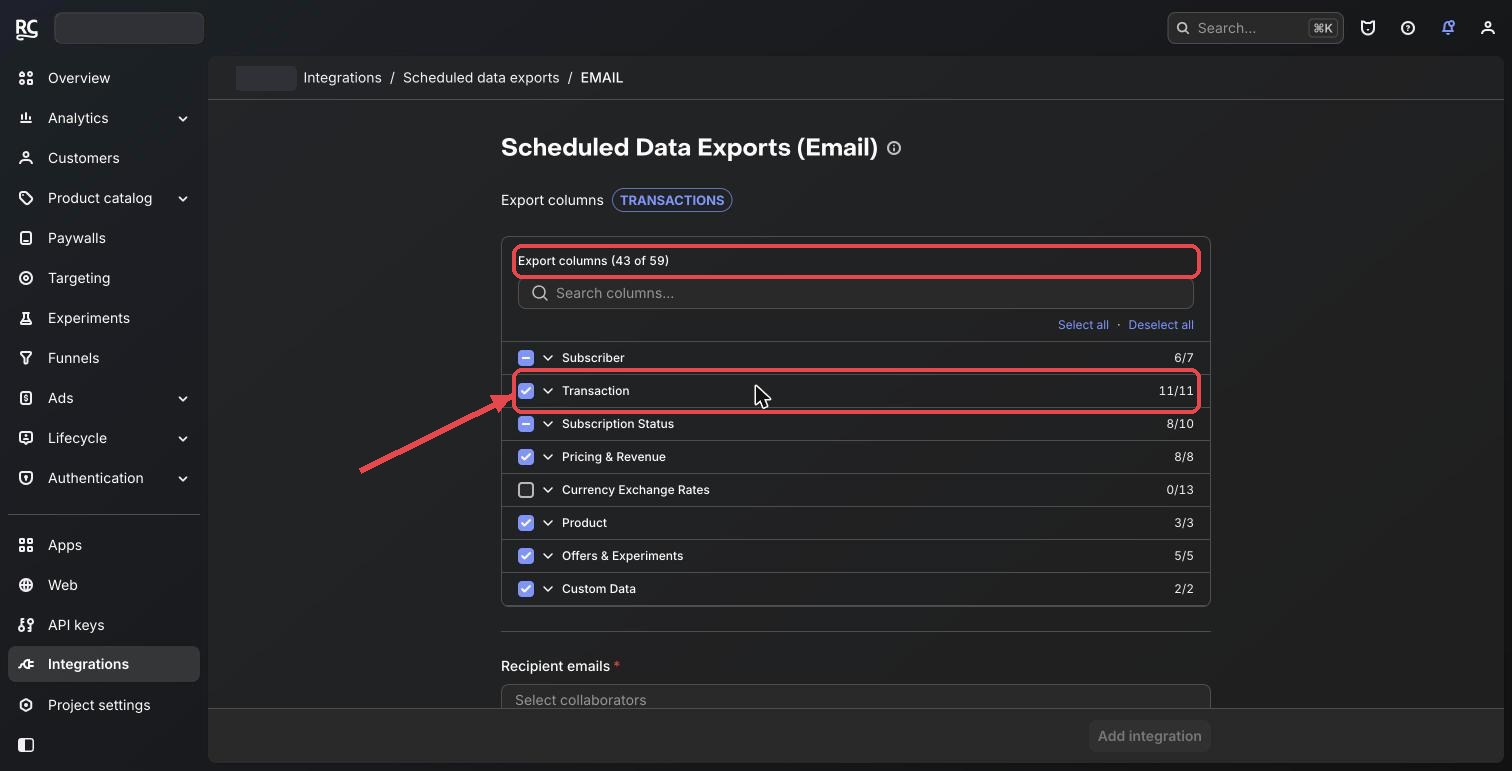
Leave the columns as they are (43 of 59 by default). Check that the Transaction group is fully ticked (11/11): it holds the purchase identifiers Bloxks Pay needs.
Step 4: recipient, time and format
- Recipient emails: pick yourself.
- Next export start time: a time close to now (in UTC, but not between 2 and 3 AM UTC).
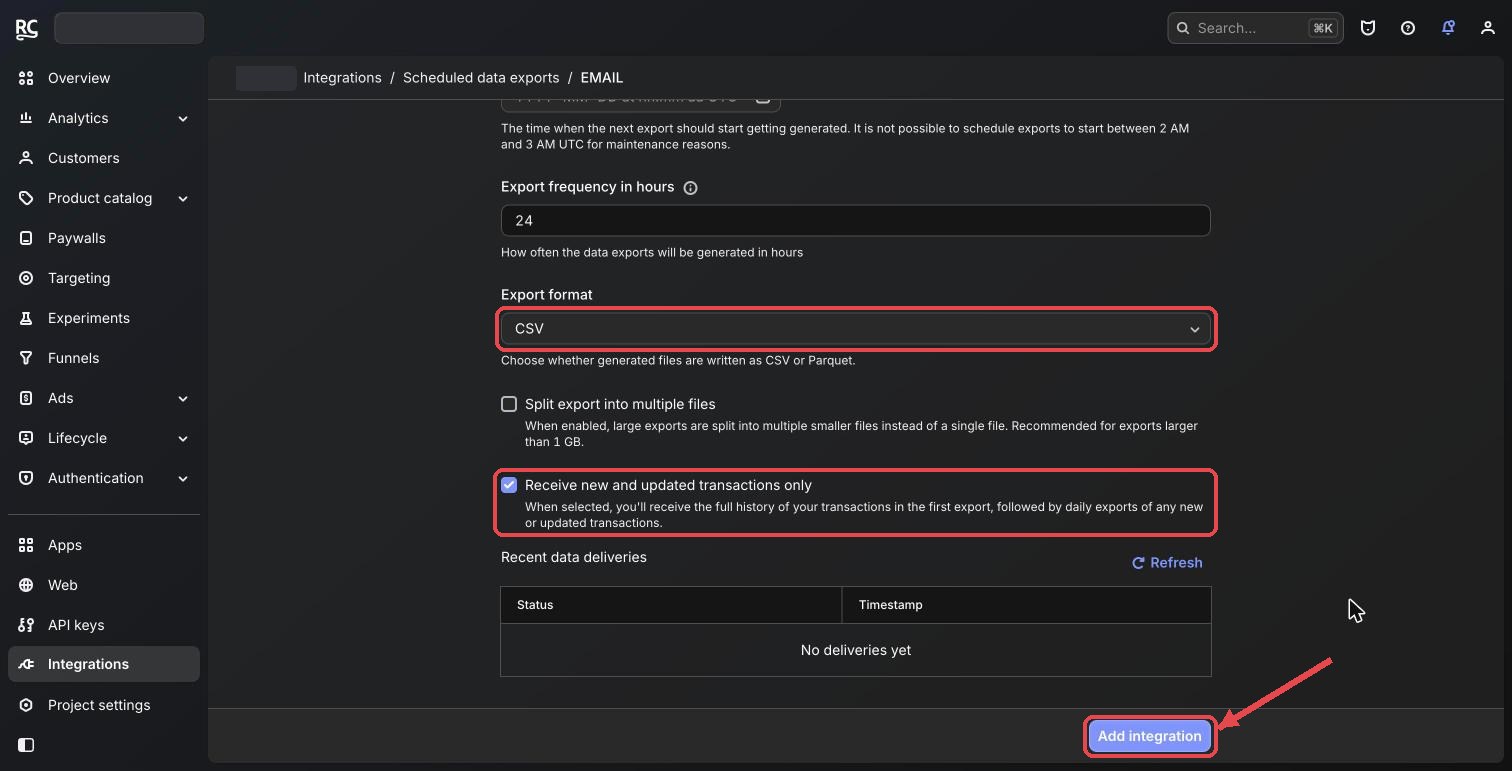
- Export format: CSV.
- Leave Receive new and updated transactions only ticked: the first export holds your full history.
- Click Add integration.
Step 5: download the file
Wait for the email titled [SDE Export] (a few hours at most) and download the file. The link stays valid 7 days. No need to unzip it: Bloxks Pay reads the .csv.gz as is.
Step 6: import it into Bloxks Pay
- Open your Bloxks Pay dashboard, pick your app, then Customers.
- Click Import from RevenueCat and choose the file.
- Check the preview: number of subscribers, Apple and Google purchases, and skipped rows with the reason (Stripe purchase, refunded, expired long ago…).
- Click Start import. A progress bar shows each purchase being checked; you can close the page, the import keeps going.
At the end, every row shows its result: imported, already in Bloxks Pay, or rejected by Apple or Google.
Good to know
- No duplicates: you can import the same file again, nothing is created twice.
- Nobody loses anything: a purchase already picked up by your new app version stays with that user.
- Google Play: your app must be published on Google Play from Bloxks first. Until then, Google purchases wait and are checked as soon as it is.
- The “Customers › Export all” file from RevenueCat has no purchase identifiers: it won’t work, use the Transactions export above.
- Bloxks Pay keeps only the useful identifiers, never the file itself.
Back to the Bloxks Pay guide.