
Push notifications
Send notifications to the phones that installed your app, from the Notifications tab or from your backend. Bloxks delivers them for you.
A push notification is a message that appears on the phone even when your app is closed: "Your order is ready", "New workout available", "Someone replied to you". Bloxks delivers them for you, straight to Apple, with your own Apple key. There is no extra account to create.
Two kinds of notifications
- Reminders scheduled on the phone. "Remind me in one hour", "every morning at 8". The phone handles them alone, no server, and they work in the preview and in Expo Go too. Just ask the builder: "Add a reminder". They show up in the Automatic notifications list of the Notifications tab, where you can change their text.
- Push notifications. Triggered by something that happens outside the phone: another user, an order, a new article. They need your published app and a phone that accepted notifications. This page is about them.
How it works
- Your app asks the user. The builder adds a short screen explaining why notifications are useful, then the iPhone shows its permission prompt. If the user accepts, their phone registers with Bloxks.
- You send. From the Notifications tab, or automatically from your backend (see below). Bloxks hands the message to Apple, and Apple shows it on each phone.
- Phones that removed your app disappear by themselves. Apple tells Bloxks, and the phone leaves your list.
Everything runs on iPhone today. Android is coming: ask us if you need it first.
Add push notifications to your app
In the chat, ask the builder: "Add push notifications". It wires the permission screen, the registration and what happens when the user taps a notification (which screen opens).
Where you can try what:
- Web preview: the permission request and the notifications are simulated inside the preview phone (iPhone look). Handy to check the flow; nothing reaches a real phone.
- Expo Go: the permission request is the real one and reminders really show up, but notifications sent from the tab or your backend do not arrive (Expo Go is not your app).
- Published app (TestFlight or App Store): everything works, and the phone registers with Bloxks.
Then publish your app (TestFlight is enough to test). Install it, accept notifications: your phone appears in the Notifications tab within seconds.
The Apple notifications key
Apple requires a notifications key to deliver to your apps. One key covers every app of your Apple team, and it never expires.
- Publishing with your Apple ID? Bloxks creates the key for you during the publication. Nothing to do.
- Publishing with an App Store Connect key? Apple does not allow us to create it that way. Add it once in the Notifications tab: in the Status block, the iPhone line shows Add the missing key. Click it, the line unfolds with the form: create your Apple notifications key (2 minutes).
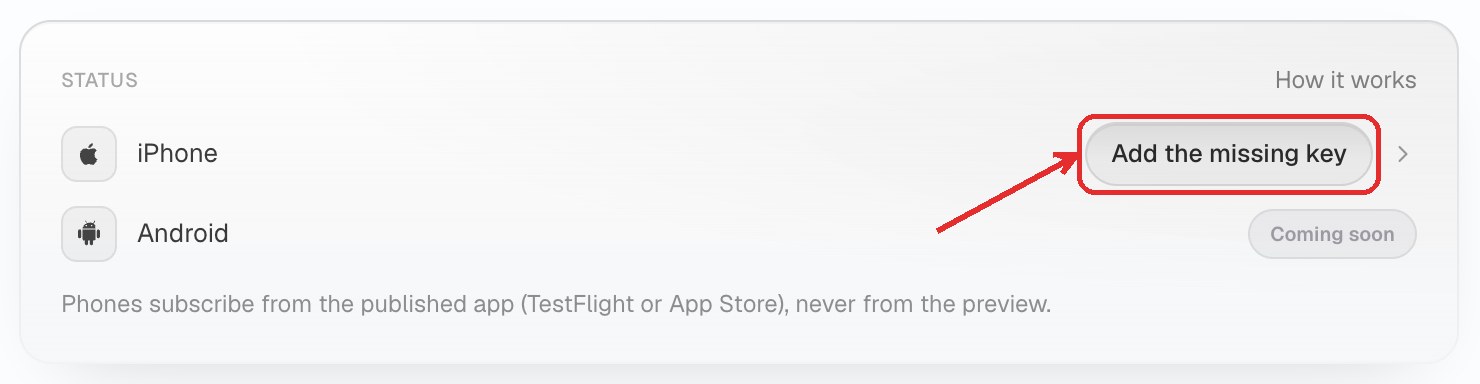
Tried to send without the key? The tab takes you straight to that button and makes it blink.
Send from the Notifications tab
Open your project, then the Notifications tab:
- Statistics: active phones, notifications sent and open rate, with their curves over 7, 30 or 90 days (hover a day for its numbers). Opens are counted by the app itself, once per phone: an app published before this feature shows “—” until its next publication, never a false 0 %.
- Subscribed phones: how many phones accepted notifications, and the latest ones. Export (CSV) downloads the full list.
- Send a notification: you write the title (65 characters max) and the message (178 max) right inside an iPhone notification, with your app icon, exactly as your users will receive it. Then Now or Schedule (date and time, several sends possible).
- Scheduled: the sends waiting for their time, which you can cancel until they go out.
- Recent sends: what was sent, to how many phones, when, and its open rate, three at a time (arrows to see the others).
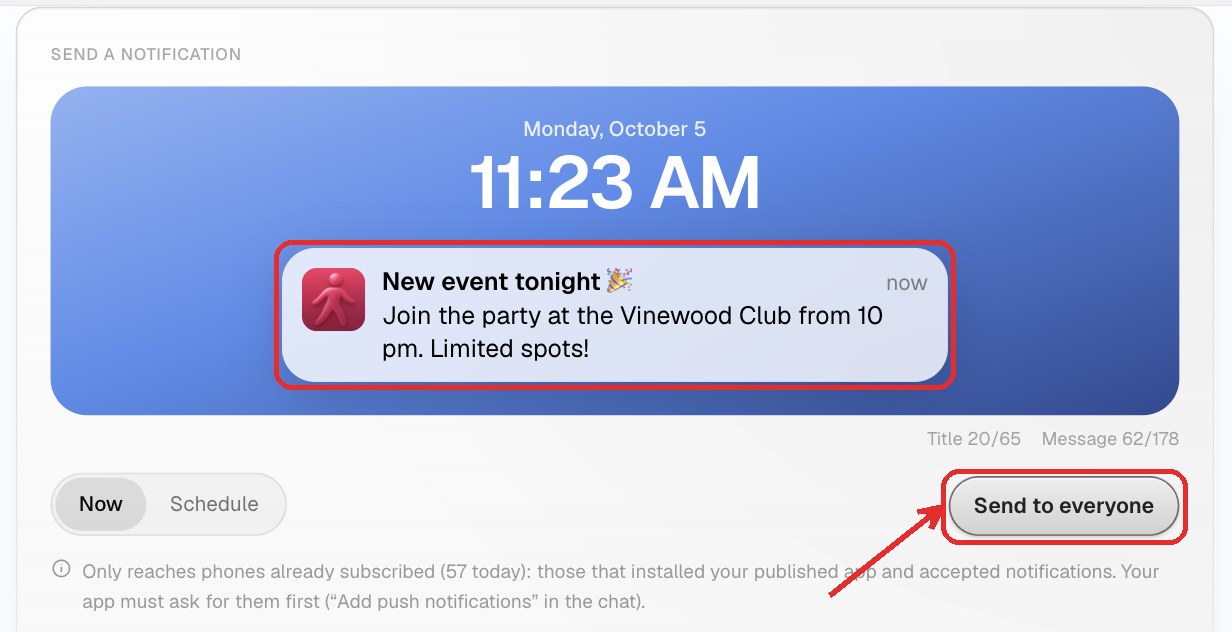
A send only reaches phones already subscribed: those that installed your published app and accepted notifications. Your app must ask for them first (see above). If something is missing when you click Send to everyone (Apple key, title, message, a date to come), the tab shows you what instead of sending.
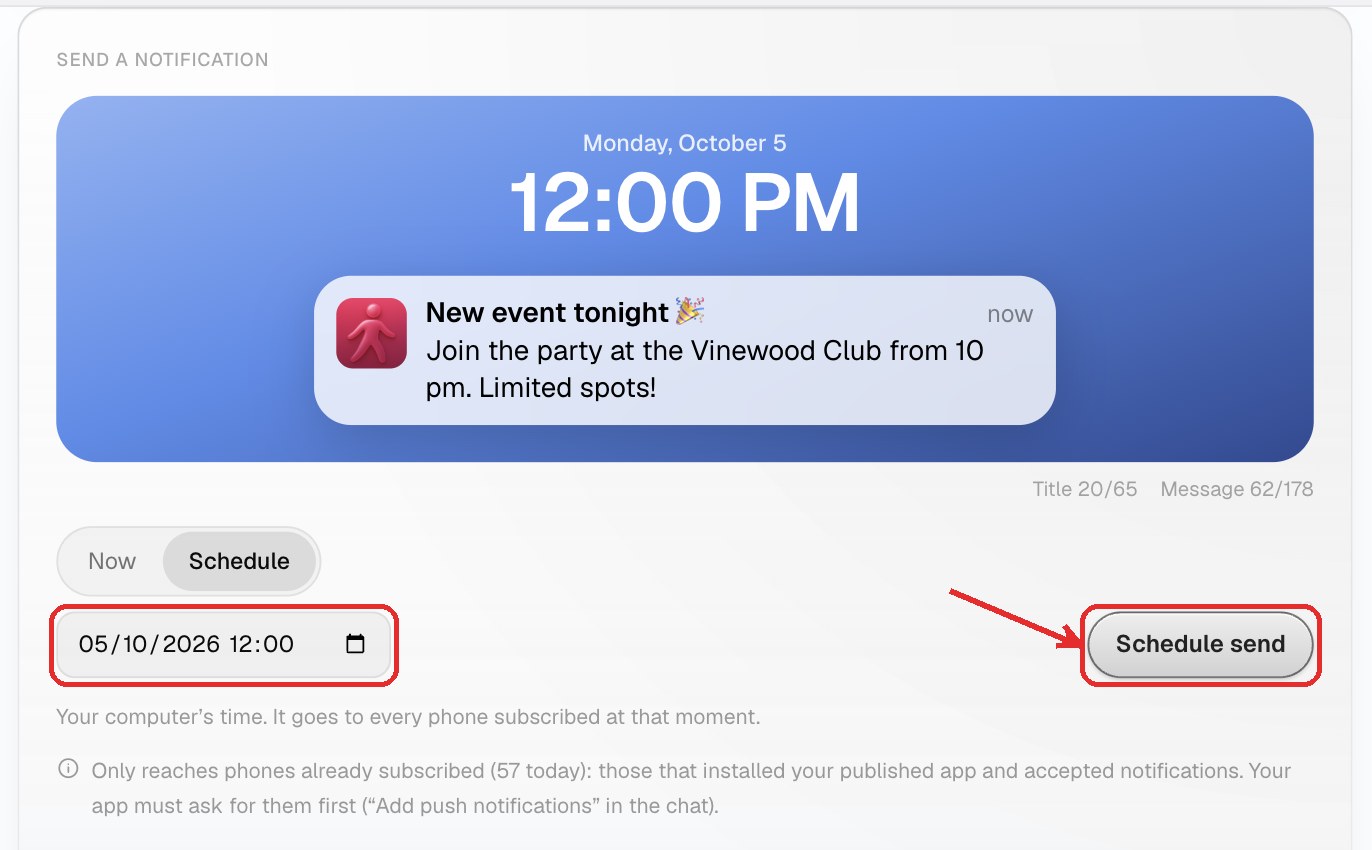
Once sent, a notification cannot be recalled.
Sending from this screen is part of the paid plans. Notifications already wired in your published app keep working whatever happens to your plan.
Automatic notifications
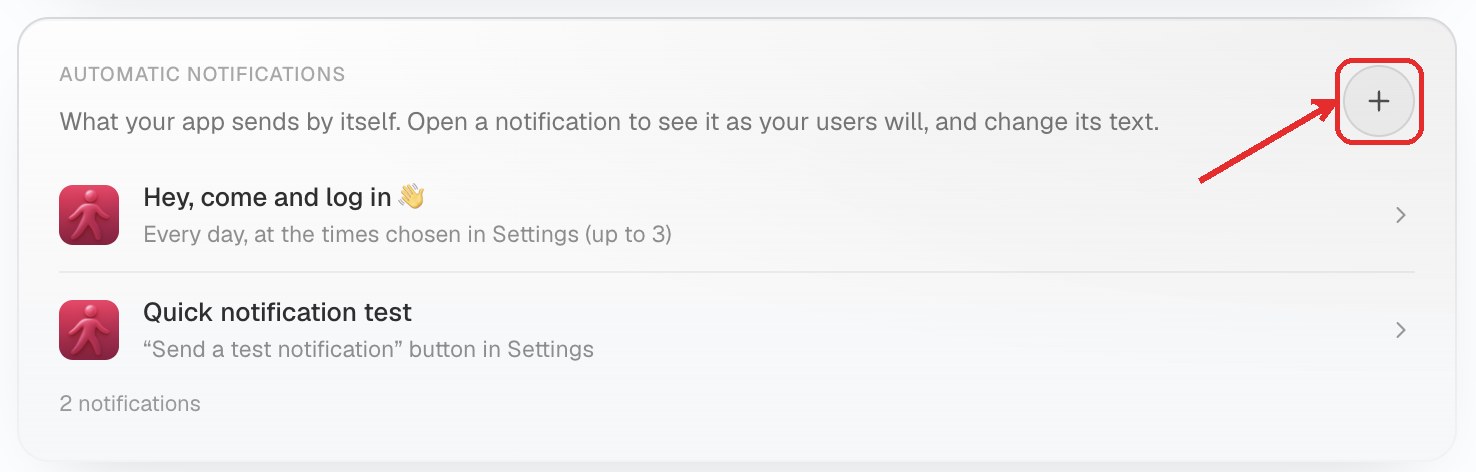
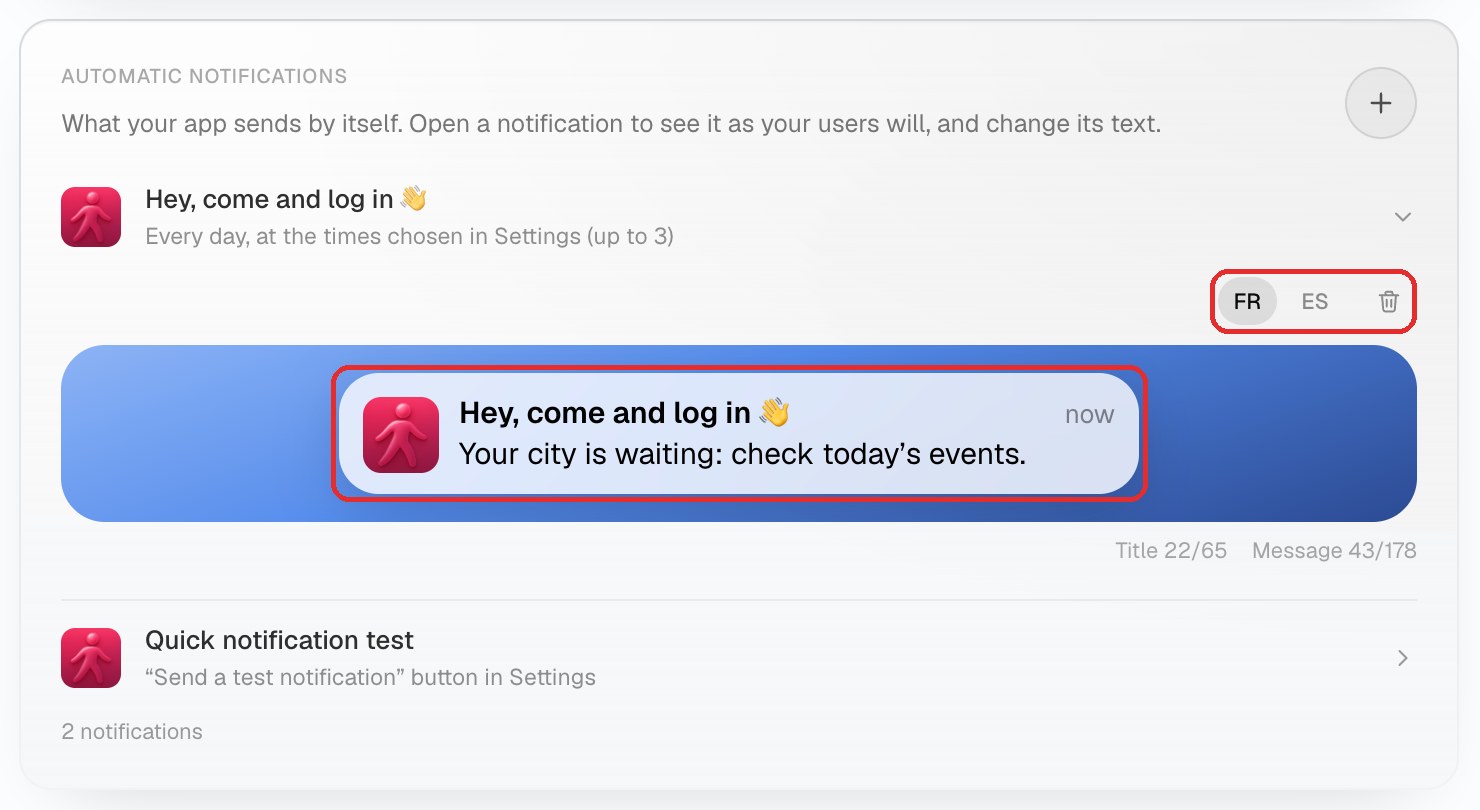
The Automatic notifications block lists everything your app sends by itself: the reminders scheduled on the phone and the notifications sent by your backend ("Your order is ready", "You have a new message"). Each line shows the notification and when it goes out; five at a time, with arrows when there are more.
- Change a text: open a notification, it appears as your users will see it. Edit the title and the message directly in it, then Save. With several languages, pick the language first (buttons, or a menu beyond three languages). The preview is updated right away; in your published app, texts sent by your backend change right away, reminders with your next publication.
- Delete: the trash button asks the builder to remove the notification from your app (not only from the list).
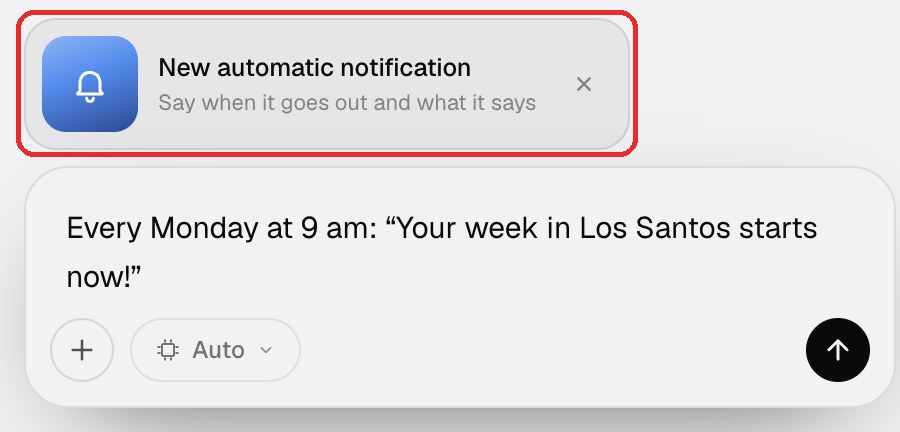
- Add one: click +. The chat opens with a New automatic notification frame: say when it goes out and what it says, then send. The builder codes it, connects it (to your backend when needed) and adds it to the list. Give the exact title or message if you have one: it is used word for word, within Apple's limits.
Details for those sent by your backend: notifications from your backend.
Rules worth knowing
- Ask for permission with context (a short screen before the system prompt), never at launch without explanation: Apple rejects apps that do.
- Marketing notifications ("-20 % this weekend") require an explicit opt-in inside the app and a way to opt out. Notifications about the user's own activity do not.
- Your privacy policy mentions that notifications are delivered through Bloxks: the builder adds that line when it wires push.
Your data stays yours
The phones subscribed to your app belong to you: the Export (CSV) button in the Notifications tab downloads them anytime. Your Apple key stays in your Apple account; Bloxks only keeps a copy to deliver on your behalf.
Notifications do not arrive?
Check, in this order:
- The app on the phone is the published build (TestFlight or App Store), not the preview or Expo Go.
- The phone appears in the Notifications tab. If not, the app has not registered it: open the app, accept notifications, wait a few seconds. Still nothing? Ask the builder "Add push notifications": it wires the registration.
- The Apple key is connected: the iPhone line of the Status block shows Ready.
- For automatic notifications: ask the builder "Check my automatic notifications", it checks your backend and fixes what is missing.
- On the phone, notifications are allowed for your app in Settings.