
Set up your Google Play account
Developer account, payments profile, service account and permissions: everything Google asks before your Android app can sell.
Google asks for more than Apple before an Android app can sell anything: a developer account, a payments profile, and a technical key that lets Bloxks publish for you. Count 30 minutes, plus Google's own delays.
Bloxks then handles the rest: the build, the store listing, the subscriptions and their prices.
1. Developer account and payments profile
- Google Play Developer account: 25 USD, once, paid to Google.
- In Play Console, open Settings, then Payments profile, and create it with your bank details. Without it, Google refuses paid products.
- Create your app’s listing by hand in Play Console: Google lets no tool create it. Its package name must match your Android build exactly.
New personal accounts: Google requires a closed test with 12 testers over 14 days before any public release. Start that clock as soon as your first build is on a testing track.
2. Turn on three Google APIs
In Google Cloud, pick (or create) a project: in the project selector at the top, click New project.
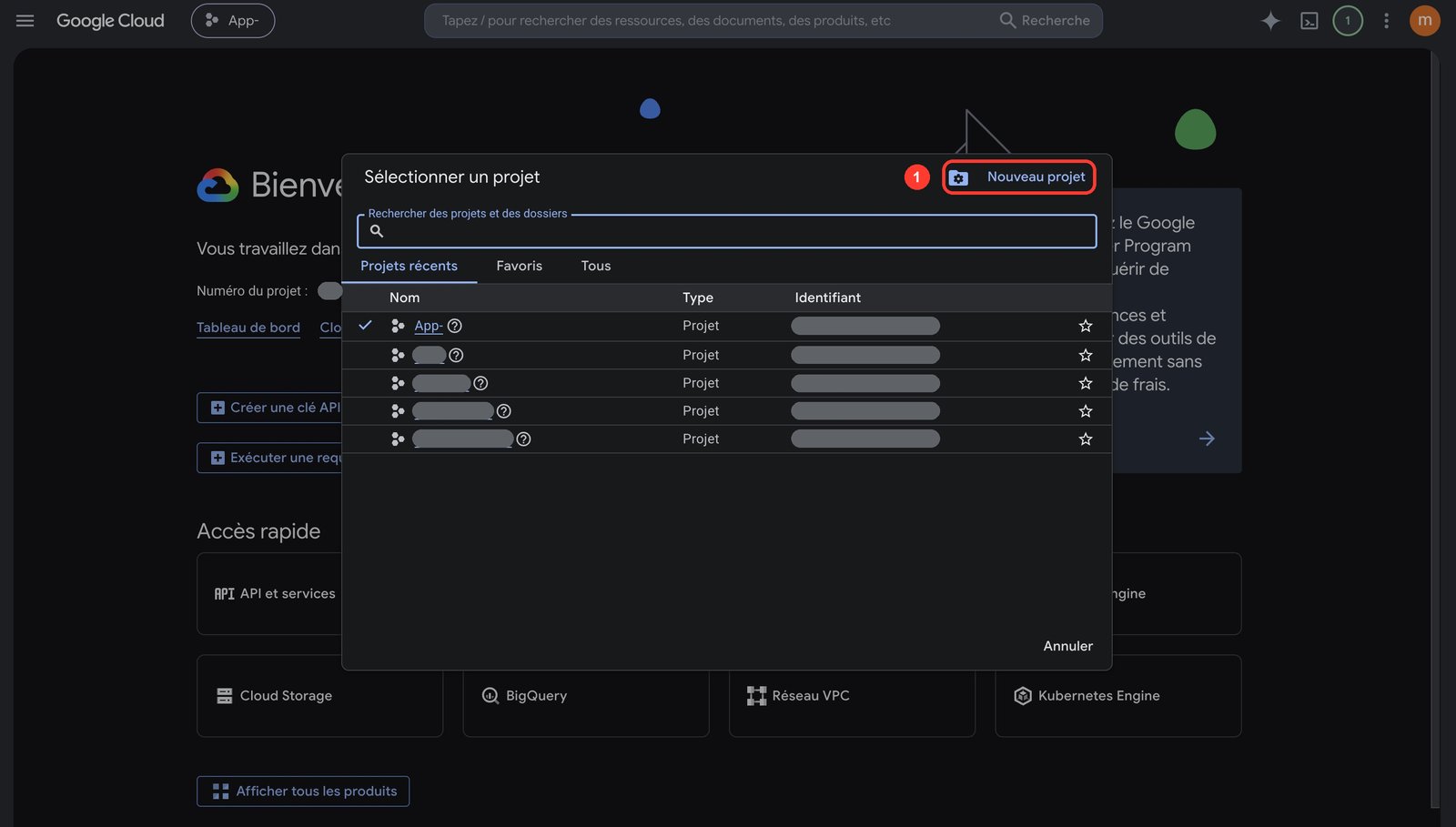
Then enable these three, in that project:
- Google Play Android Developer API — publishing and products.
- Google Play Developer Reporting API — purchase checks.
- Cloud Pub/Sub API — renewal notifications.
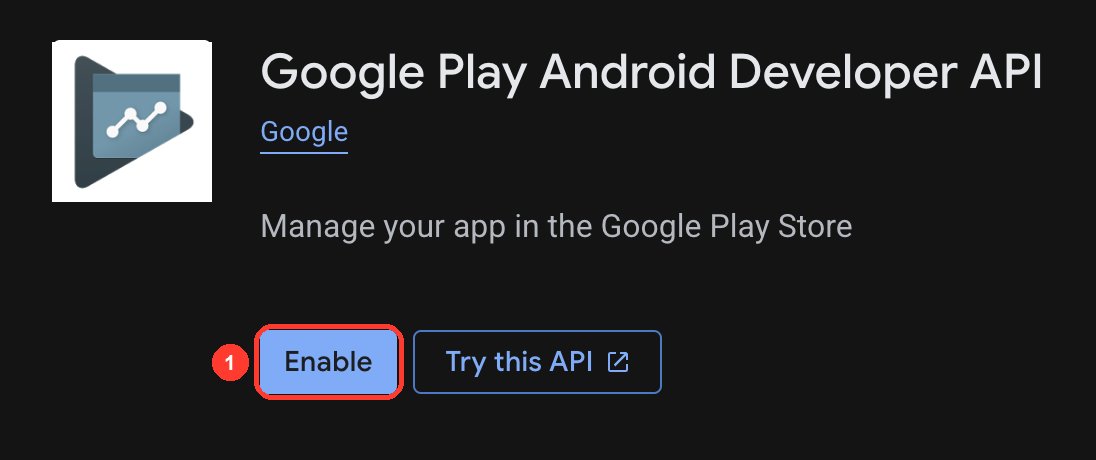
Each page is done when the button reads Manage instead of Enable.
3. Create the service account
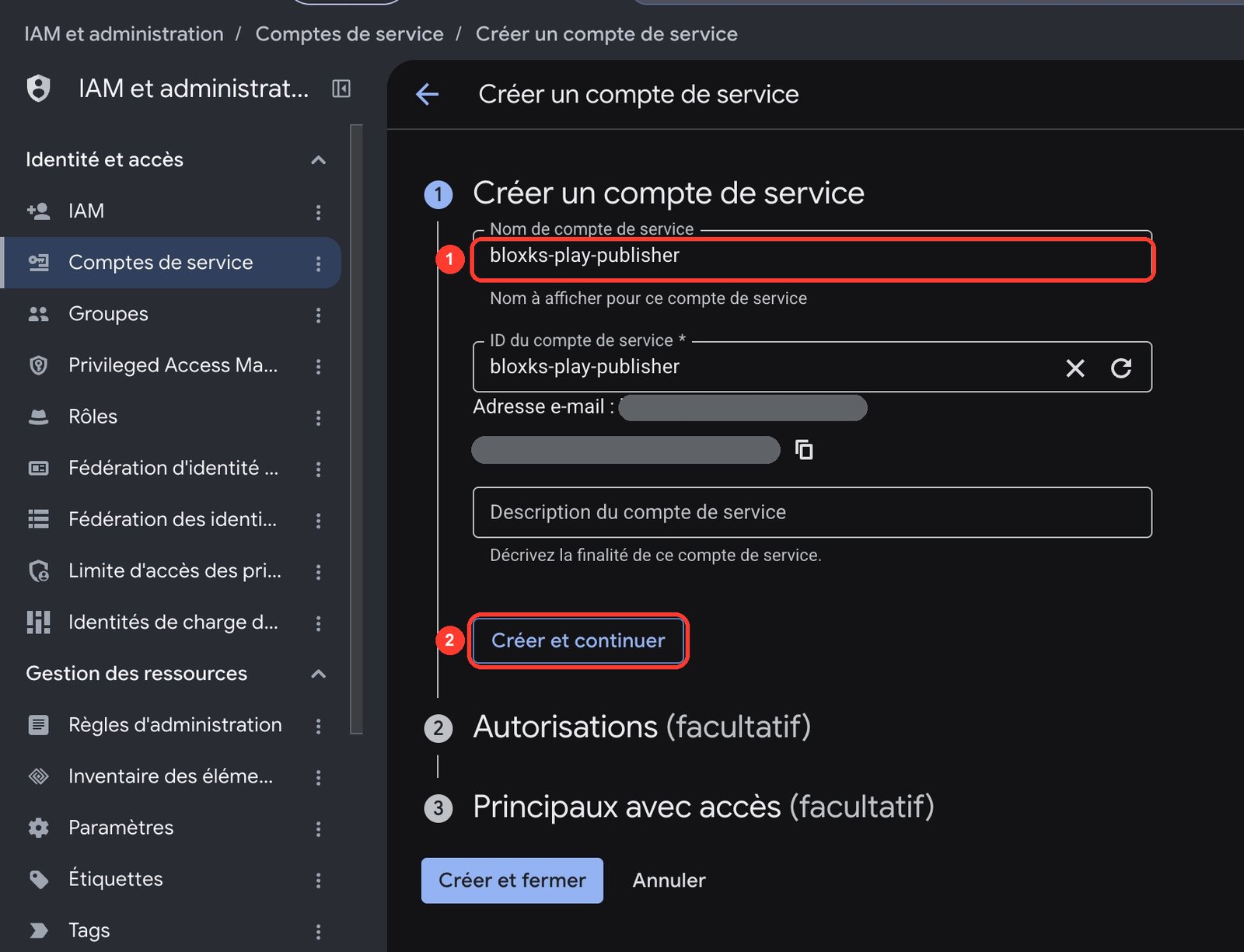
Still in Google Cloud, open IAM & Admin, then Service accounts, then Create service account. Name it clearly, for example bloxks-play-publisher, then click Create and continue.
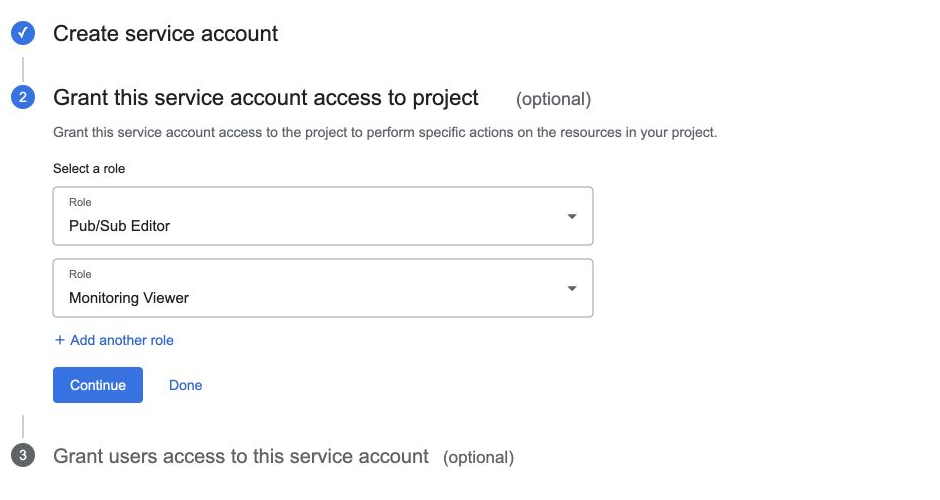
At the "grant access" step, give it two roles: Pub/Sub Editor and Monitoring Viewer. They are what let renewal notifications be set up later.
Then open the account, Keys, Add key, Create new key, choose JSON and download the file. Google shows this key only once: keep it in a password manager.
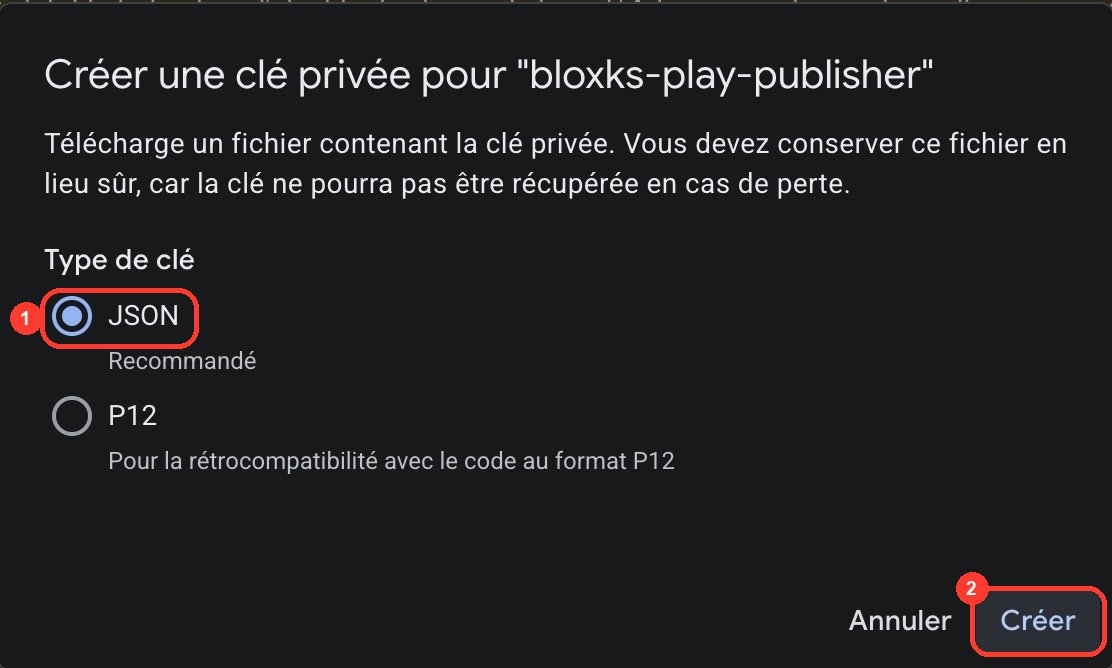
Google refuses to create the key? Since May 2024 it blocks service accounts and their keys by default in any Google Cloud organization — and an organization is created automatically as soon as you use Google Cloud with a domain-based account (company, school, Workspace). Two ways out:
- The simplest: redo this step from a personal Gmail account. A project created there belongs to no organization, the policy does not apply, and the key is created normally. Your Play developer account does not need to be linked to the Google Cloud project: only the invitation in step 4 matters.
- If you must keep the company account: an organization owner has to turn off
iam.disableServiceAccountCreationandiam.disableServiceAccountKeyCreationin IAM & Admin, then Organization policies.
Do not create a Cloud Identity organization or buy a domain name to work around this block: neither helps here.
4. Give that account access to your app
In Play Console, open Users and permissions, then click Invite new users.
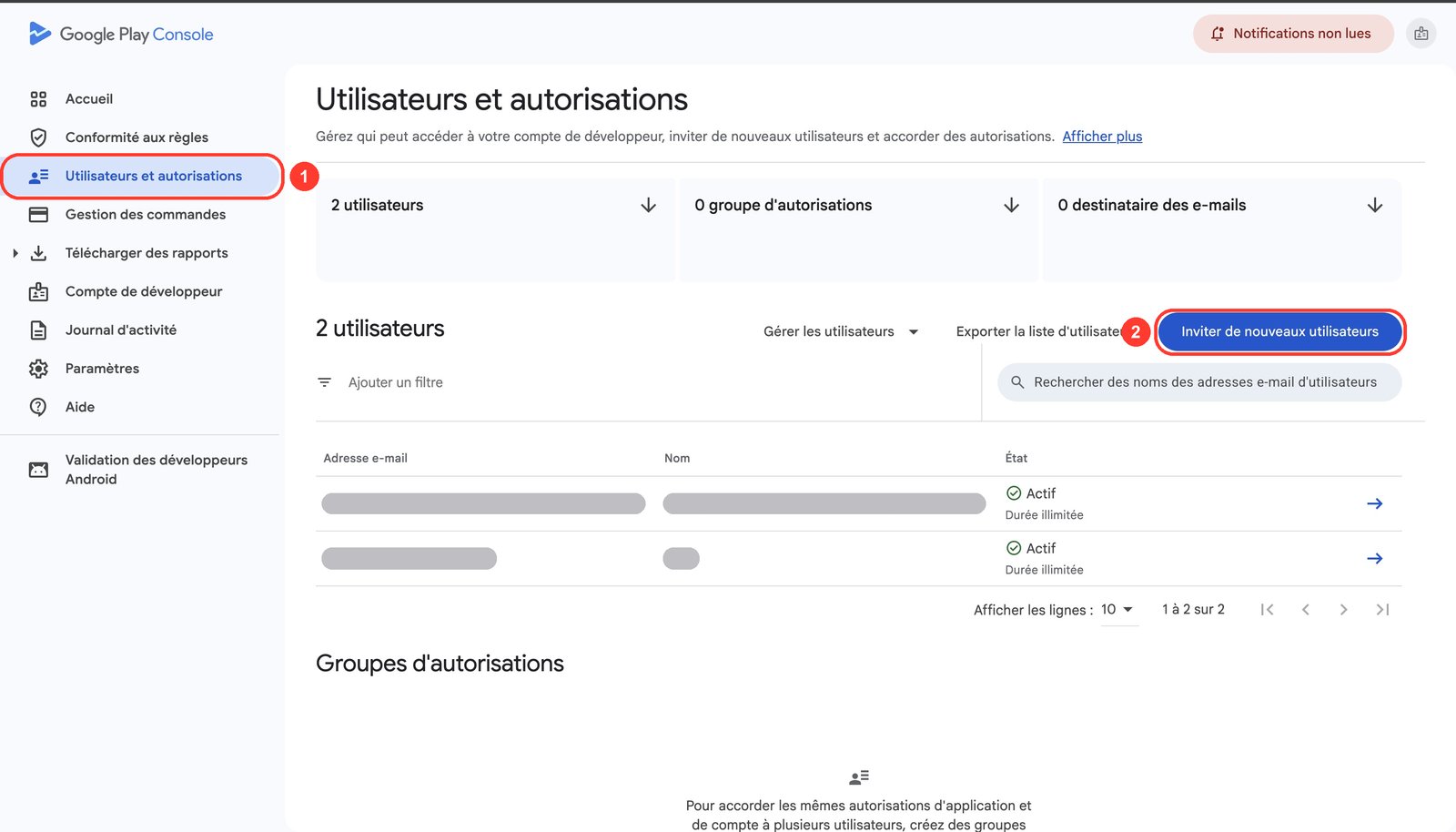
In the form, paste the service account’s email address (it ends in iam.gserviceaccount.com). Under Account permissions, tick Admin (all permissions), then click Invite user. It applies to every current and future app, with no app to pick one by one.
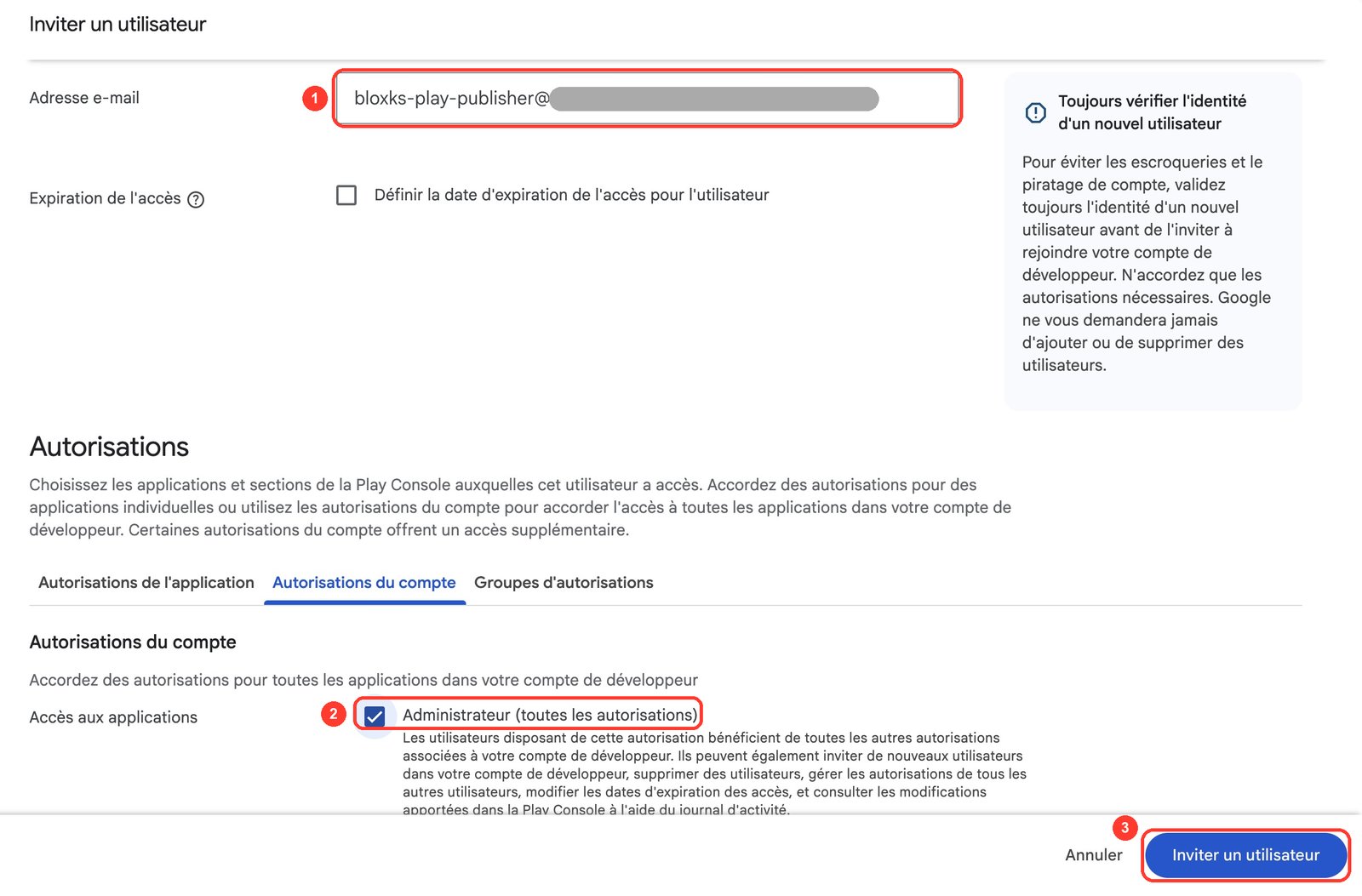
Prefer to give it only what it needs? Instead of Admin, tick exactly these four account permissions:
- View app information and download bulk reports
- View financial data, orders, and cancellation survey responses
- Manage orders and subscriptions
- Manage store presence
Finally, in Bloxks, open Connections, then Google Play: the guide imports the JSON file and shows the address to invite.
5. Wait, then check
Google can take up to 36 hours to accept a new service account. Until then, "invalid credentials" is normal, both in Bloxks and in RevenueCat.
A trick that often unblocks it right away: in Play Console, open Monetize, then a product, change its description slightly and save.
6. Renewal notifications (subscriptions)
Bloxks already gives RevenueCat your Google key when you publish. To know about renewals and cancellations right away, RevenueCat needs one more link, on your side:
- In RevenueCat, open your project’s Play Store app and create the topic under Google developer notifications, then copy its ID.
- In Play Console, open your app, then Monetize with Play, then Monetization setup, paste the topic and pick Subscriptions, voided purchases, and all one-time products.
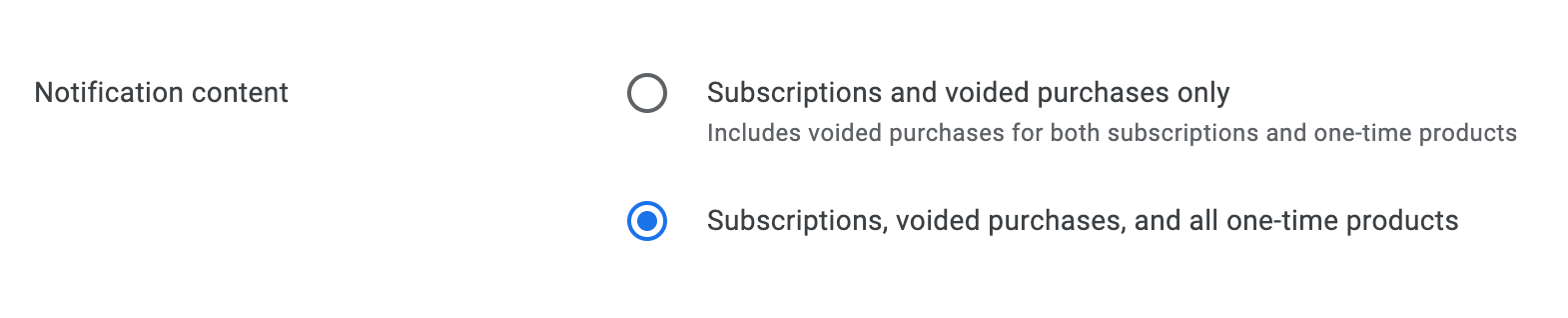
If the test notification fails, add google-play-developer-notifications@system.gserviceaccount.com to the topic in Google Cloud, with the Pub/Sub Publisher role.
Before you publish, check
- Developer account active and payments profile created.
- App listing created in Play Console, with the right package name.
- The three APIs enabled in the same Google Cloud project.
- Service account created, with its two roles and its JSON key.
- The four permissions granted in Play Console.
- The JSON file uploaded in Bloxks, tested.
Next: Test purchases on Android, then Paywall and subscriptions.