
Google Play account for Bloxks Pay
Create your Google Play service account (.json file) and drop it in Bloxks so Bloxks Pay can check your Android purchases.
Bloxks Pay checks every purchase of your Android app directly with Google. To do so, it needs a Google Play service account: a technical account in Google Cloud, with a small .json key file. The same account also lets Bloxks publish your app and create its products on Google Play. Count about 5 minutes, and one account is enough for all your apps.
Already connected Google Play to publish? Then it’s done: Bloxks Pay uses that same account.
Before you start
- A Google Play Developer account, with the Admin permission (or account owner): you will invite a user in it.
- Use a personal Gmail account in Google Cloud: in a company or school Google Cloud organization, Google blocks service account keys by default.
Step 1: create a Google Cloud project
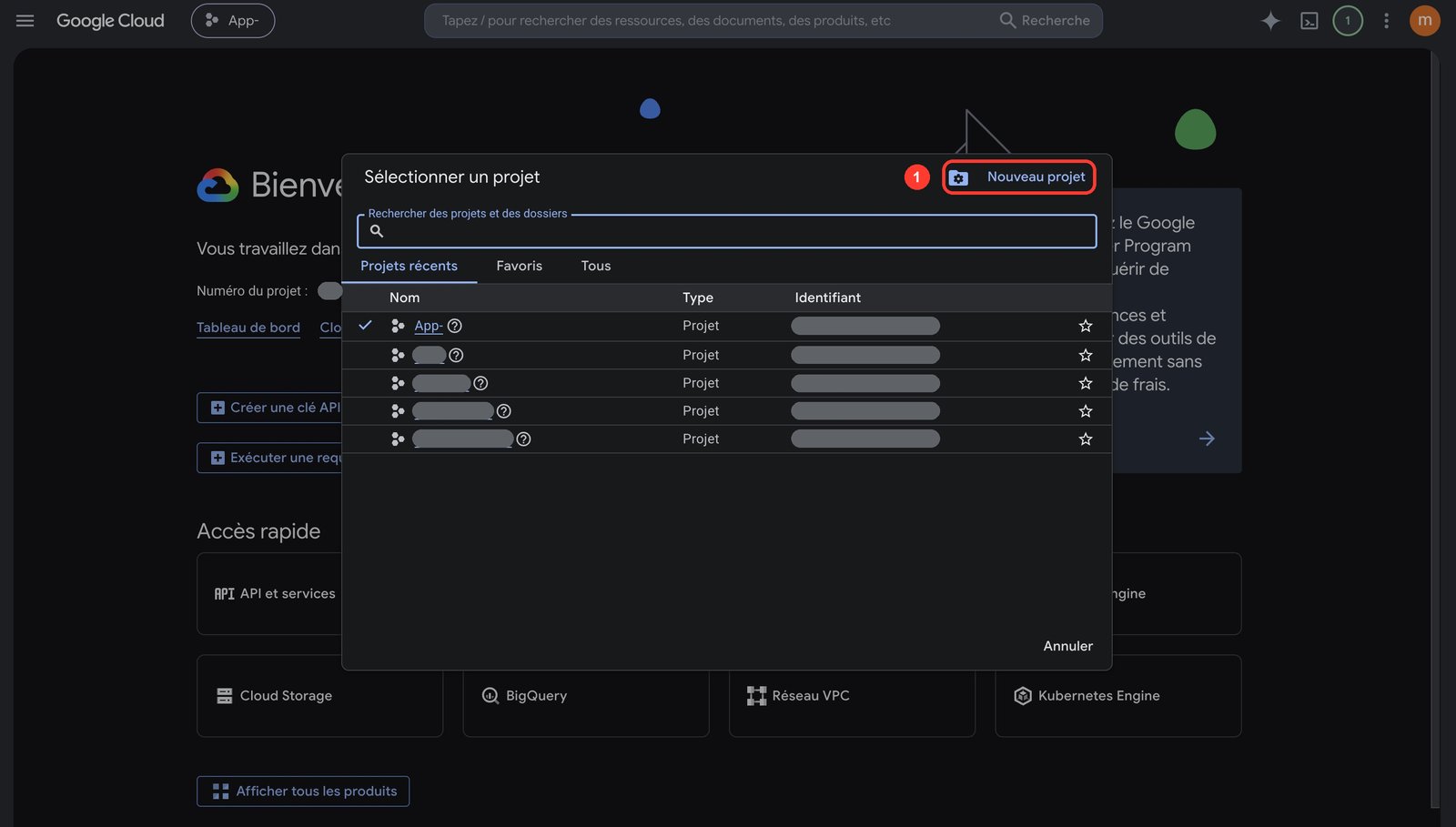
Open Google Cloud. In the project selector at the top, click New project, give it a name (for example Bloxks), then Create.
Step 2: enable the Google Play API
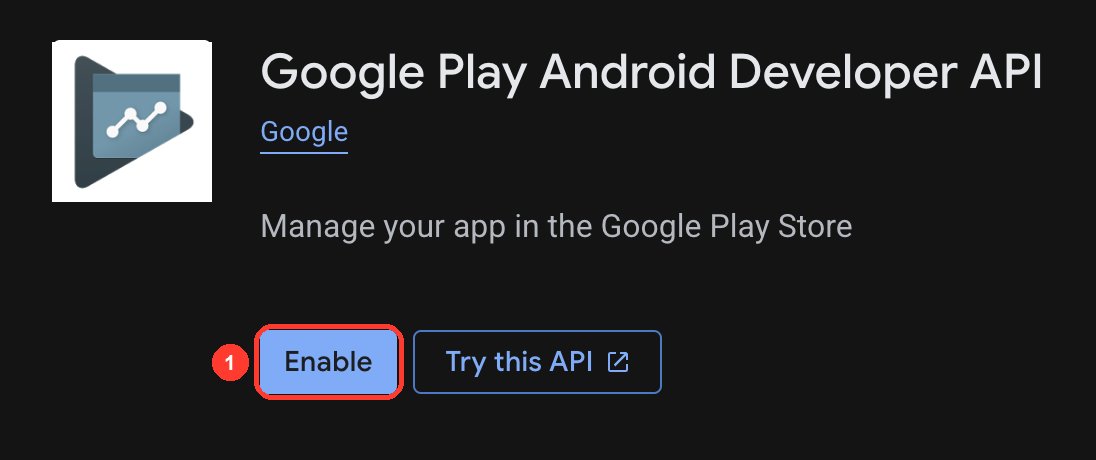
With your new project selected at the top, open the Google Play Android Developer API and click Enable. It is ready when the button reads Manage.
Selling subscriptions? Also enable Google Play Developer Reporting and Cloud Pub/Sub in the same project.
Step 3: create the service account
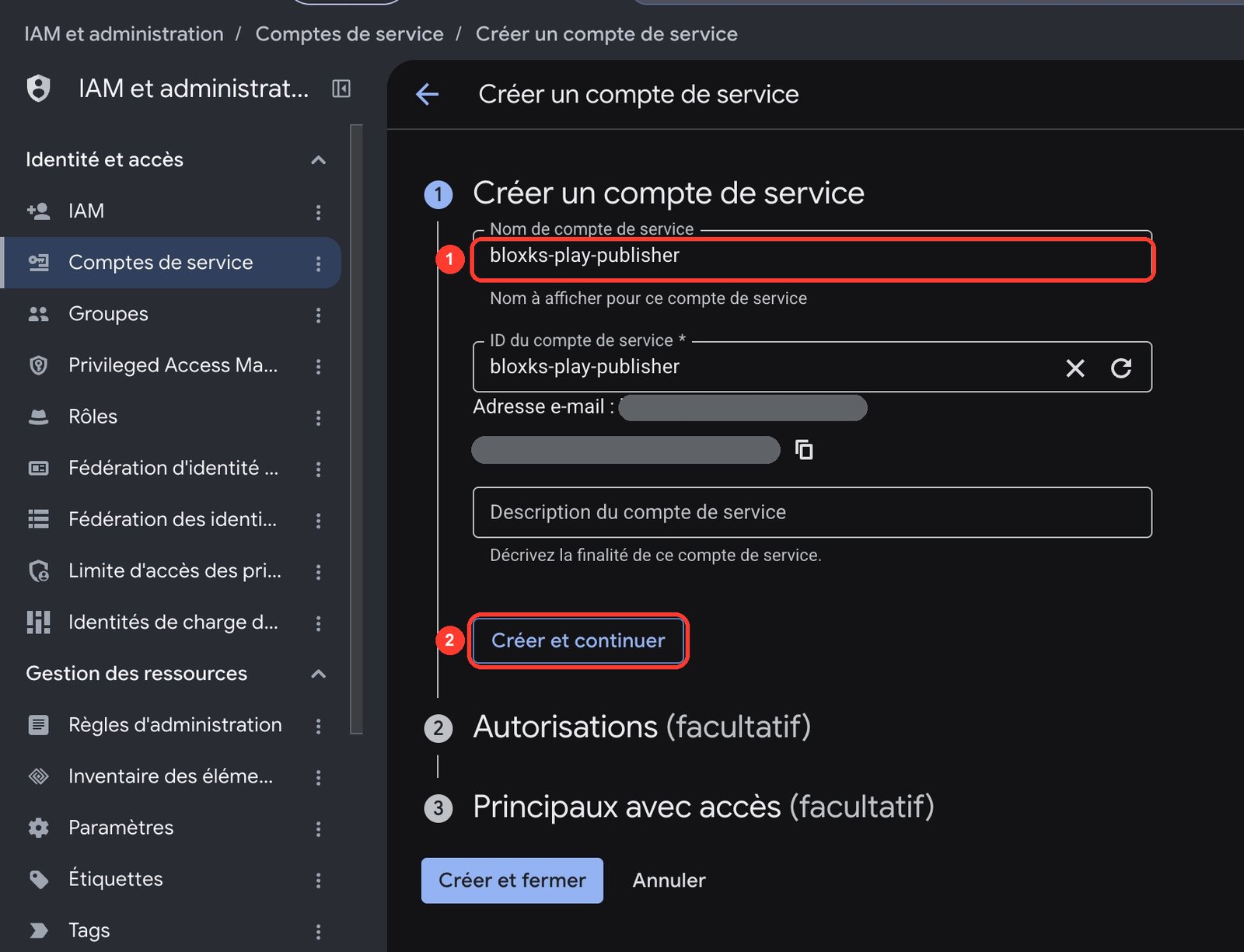
Open IAM & Admin → Service accounts → Create service account. Name it bloxks-play-publisher, then click Create and continue.
In Permissions, add two roles: Pub/Sub Editor and Monitoring Viewer, then Done. They are what let Bloxks Pay create your renewal notification topic.
Step 4: download the JSON key
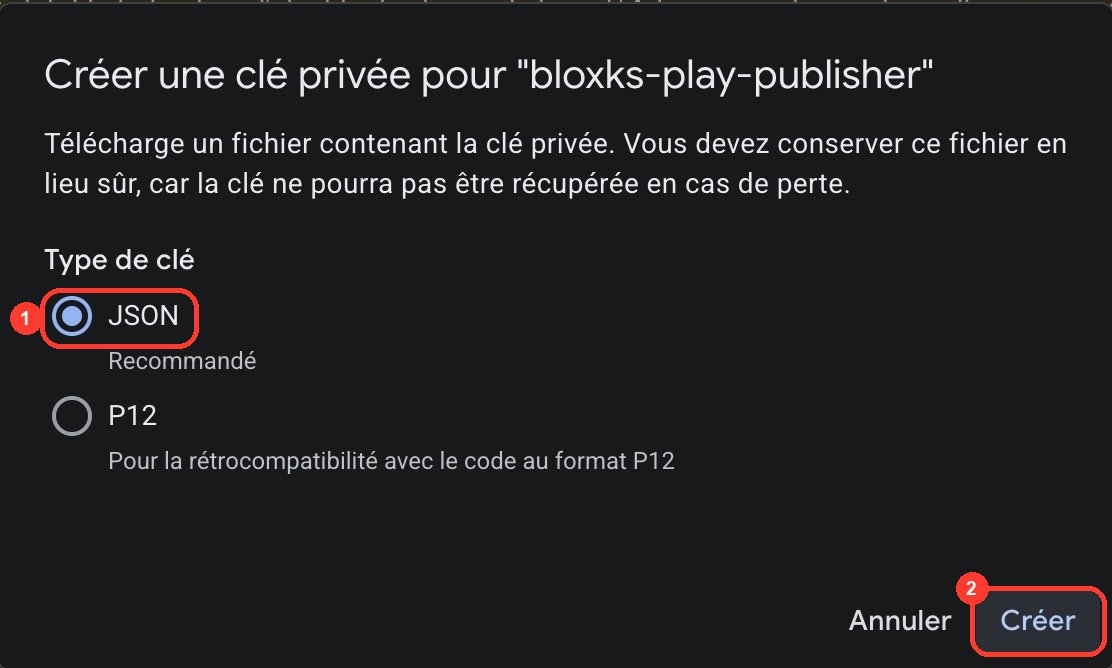
Open the new account → Keys → Add key → Create new key, choose JSON, then Create. The file downloads right away.
Google offers this file only once: keep it private.
Step 5: invite the account in Play Console
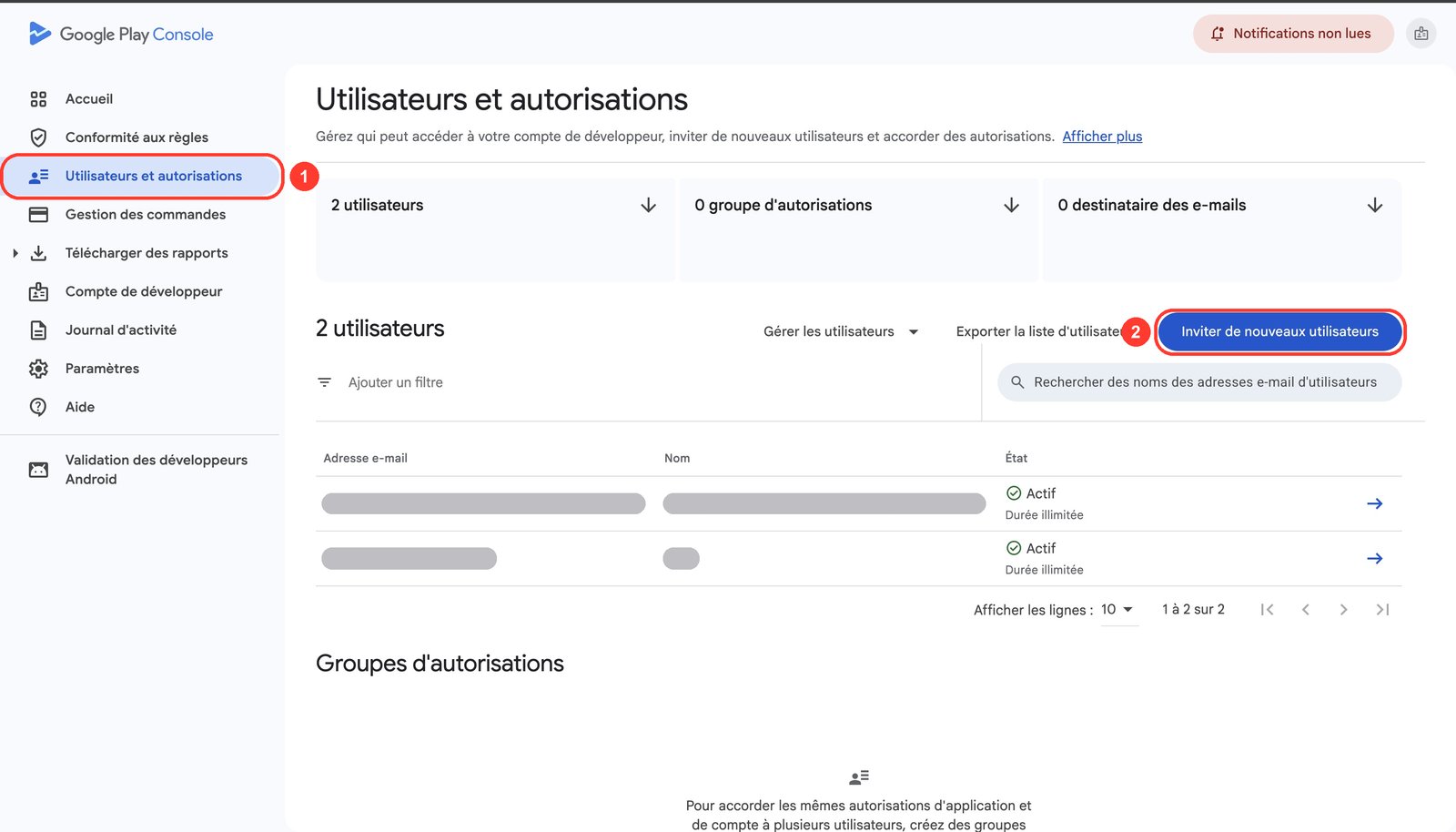
In Play Console, open Users and permissions, then click Invite new users.
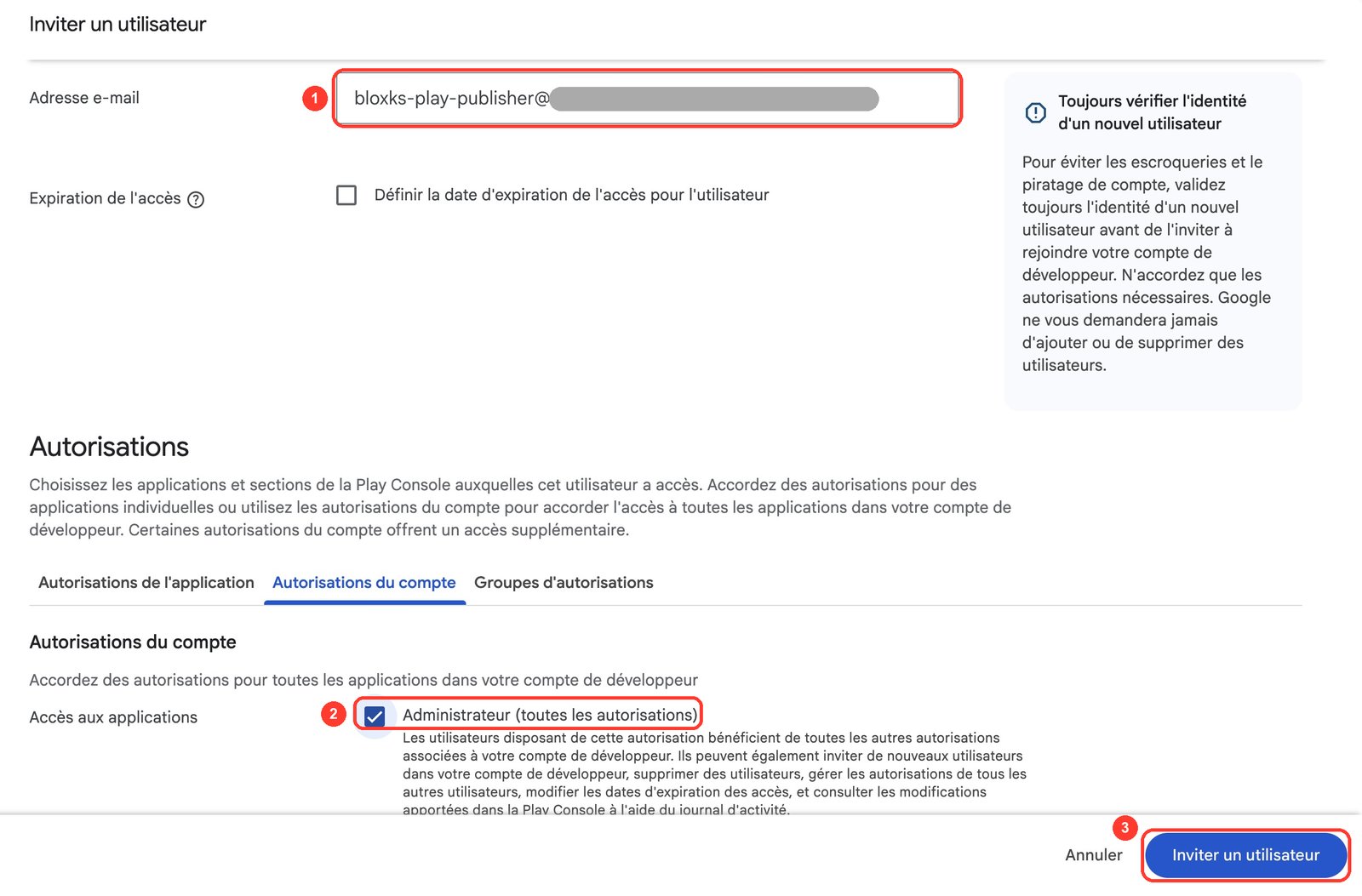
Paste the service account’s address (it ends in iam.gserviceaccount.com; Bloxks also shows it once the key is imported). Under Account permissions, tick Admin (all permissions), then click Invite user. It covers every current and future app.
Step 6: drop it in Bloxks
Two places, same result:
- the Monetization tab of your project, Bloxks Pay card, Google Play service account line: click Upload the .json file, or See the steps for the same guide inside Bloxks. Don’t see the Android part? Turn it on with the Android icon at the top of the card;
- or Integrations → Bloxks Pay, Android block (Edit if a key is already there), or Integrations → Google Play.
That’s it. The account is saved to your account, encrypted, and serves all your apps. Your Android app is registered with Bloxks Pay when you publish it on Google Play, and its products are created there at the same time.
Google can take up to 36 hours to accept a new service account: until then, “invalid credentials” is normal.
After your Google Play release: notifications
One step stays on your side, once per app. After the release, the Google Play notifications line of the Bloxks Pay card shows a topic name:
- Copy it.
- In Play Console › Monetize › Monetization setup › Real-time developer notifications, paste it, tick All notifications, then click Send test message.
Renewals and refunds then arrive instantly. Even before that, no purchase is lost: Bloxks Pay rereads your Google purchases every hour, they just arrive a little later.
If it doesn’t work
- “This file is not a Google service account JSON key.”: you picked another file. Use the one downloaded from Keys → Add key → JSON on the service account.
- Google refuses to create the key: your Google Cloud project belongs to a company or school organization. Redo the steps from a personal Gmail account.
- “Invalid credentials” or Google refuses access: the account is not invited in Play Console yet (step 5), or Google hasn’t accepted it yet (up to 36 hours).
- “Permission missing” on the notifications line: the service account couldn’t create the topic. In Google Cloud › IAM, give it the Pub/Sub Editor role (and enable the Pub/Sub API in the same project), then click Retry.
- Keep the .json file private: never paste it in the Bloxks chat or in your app’s code.
Back to the Bloxks Pay guide.