
Test purchases
Try a real purchase in the builder preview with RevenueCat’s Test Store, for free, and see it in your dashboard.
Before publishing, check that a purchase really unlocks premium. Everything happens in the Paywall tab of the builder, the $ icon above the preview. No paywall yet? Start with Create a paywall.
Try a purchase in the builder
RevenueCat’s Test Store stands in for the App Store: in the builder’s web preview, a purchase really unlocks premium access and shows up in your RevenueCat dashboard. No Apple account, no build, no money.
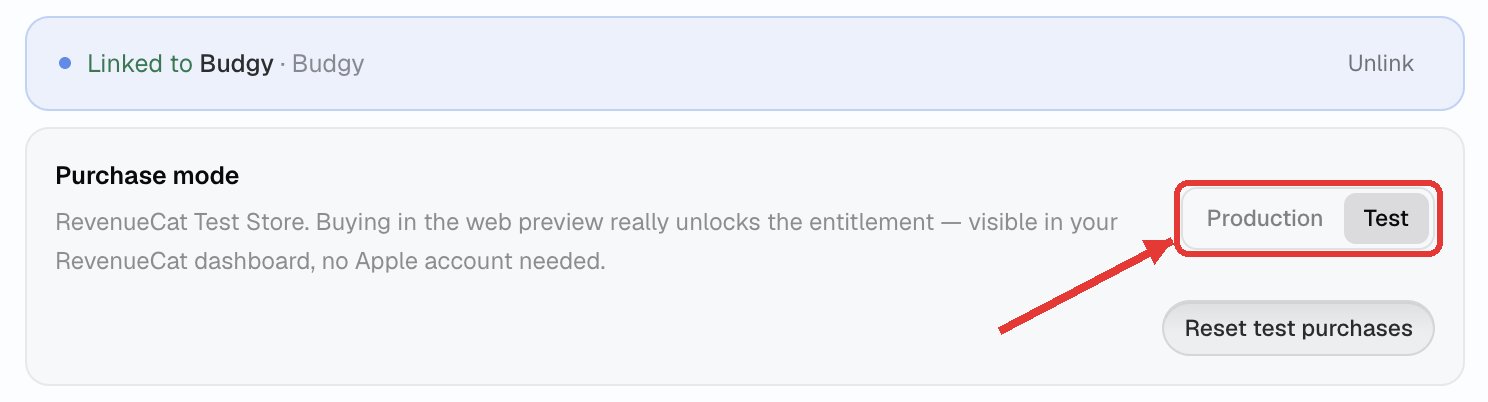
Switch to Test. In the Paywall tab, under Purchase mode, pick Test. Your published app always stays in Production: every publish switches the project back to Production on its own, and keeps your test setup for next time.
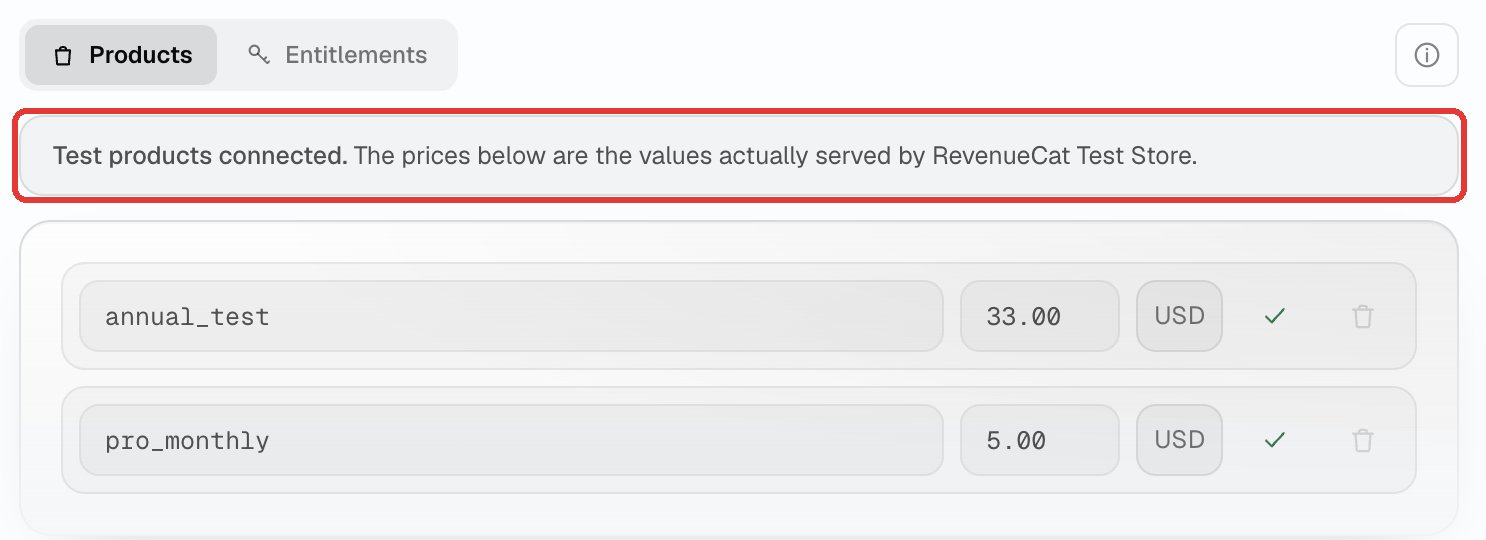
Check your test products. The Products list now says Test products connected and shows the prices the Test Store really serves. They are read-only in Bloxks: identifiers and prices are managed in RevenueCat.
Buy from the preview. Start the preview, open your paywall and pick a plan. Instead of Apple’s payment sheet, RevenueCat shows a test window with three choices: successful purchase, failed purchase, or cancel. Try all three: premium must unlock on success, and your app must stay usable after a failure or a cancel.
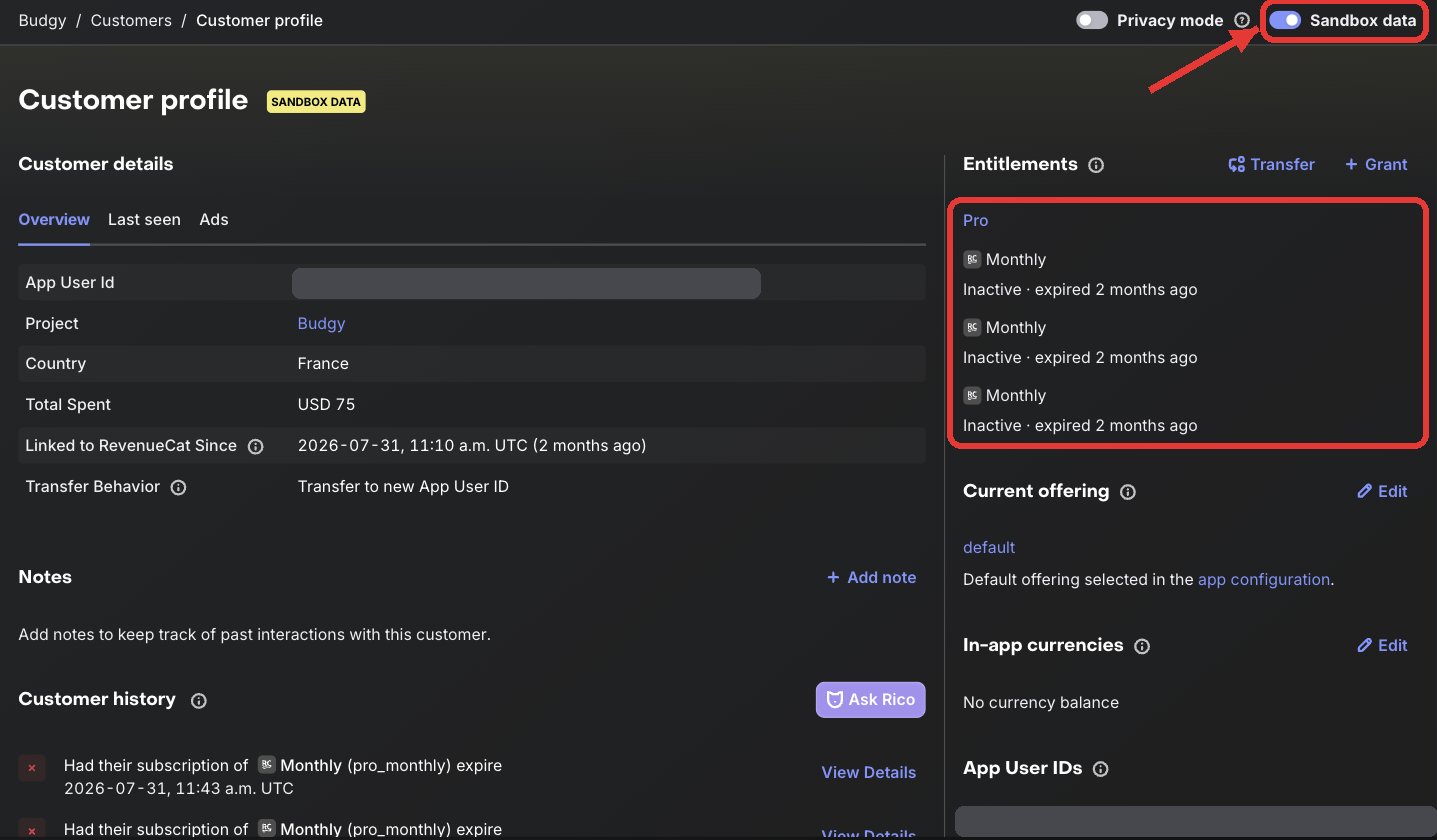
Check in RevenueCat. Open Customers, then the Sandbox list, and open your test customer. Turn on Sandbox data at the top right: the purchase appears in its history and the premium access under Entitlements.
Start again from scratch. Reset test purchases gives you a brand-new test customer, as if you had never bought anything. Nothing is deleted in RevenueCat.
Test subscriptions go much faster than real ones: a monthly plan renews every 5 minutes, an annual plan every hour, 5 times in a row, then it expires. A test customer marked "expired" after a while is therefore normal. In a shared web preview, purchases are switched off.
If the Test Store is not ready yet
Bloxks never creates test products for you: RevenueCat wants them created and priced in its own dashboard. The Paywall tab tells you what is missing (Create your Test Store or Finish Test Store setup). Allow 5 minutes.
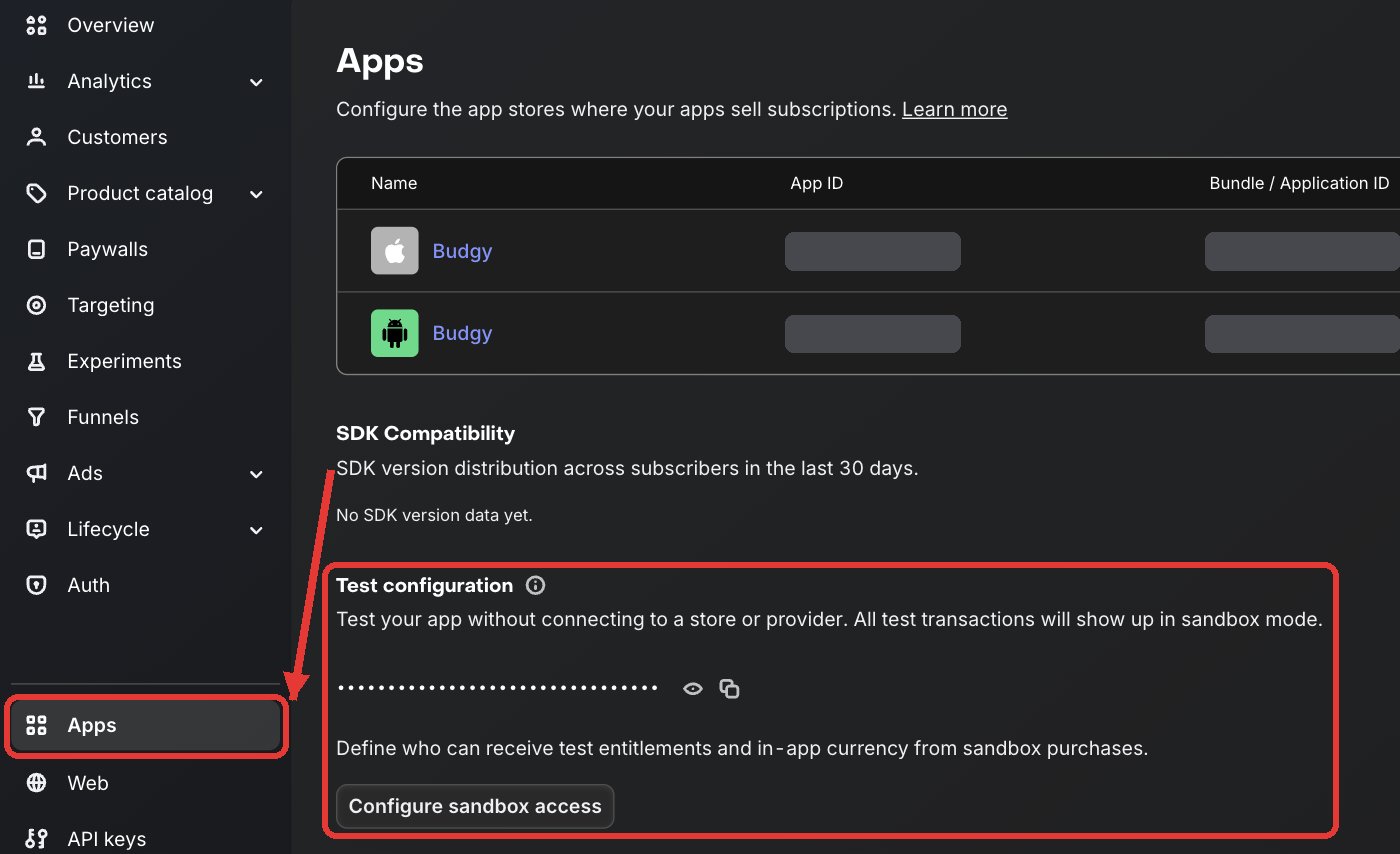
In RevenueCat, open your project, then Apps. Under Test configuration, create the Test Store. RevenueCat shows a test key: you don’t need to copy it, Bloxks fetches it on its own.
Open Product catalog, then Products. In the Test Store block, click + New.
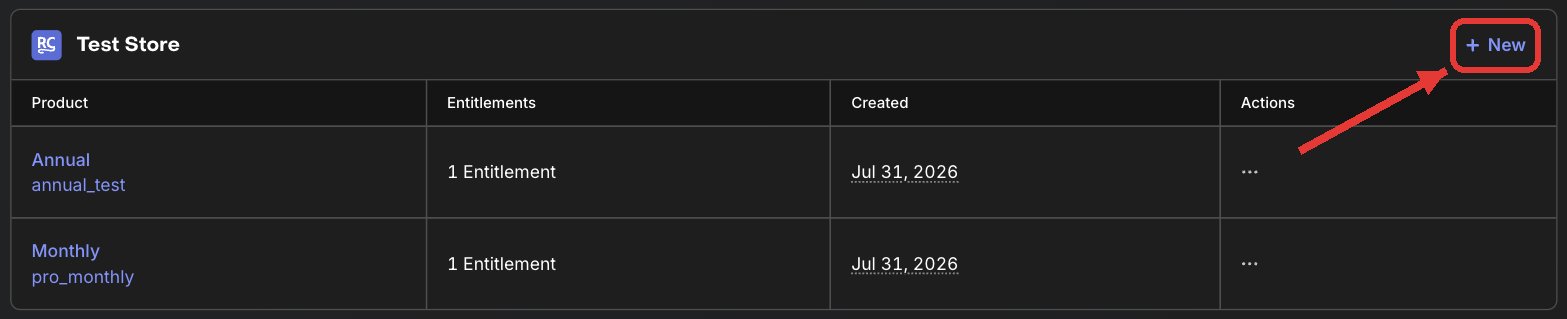
For each product listed in the Paywall tab, type exactly the same identifier as in Production (for example
pro_monthly).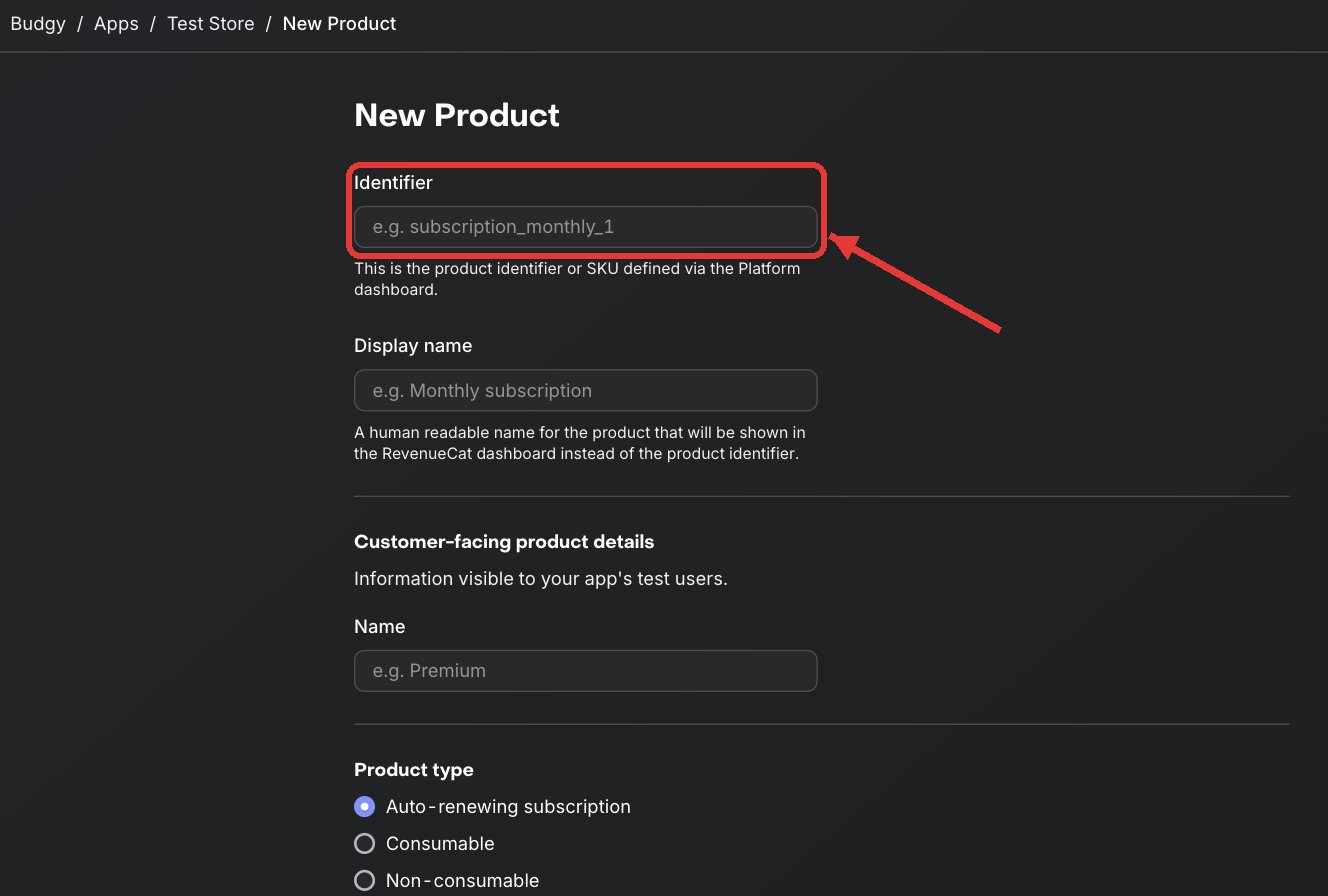
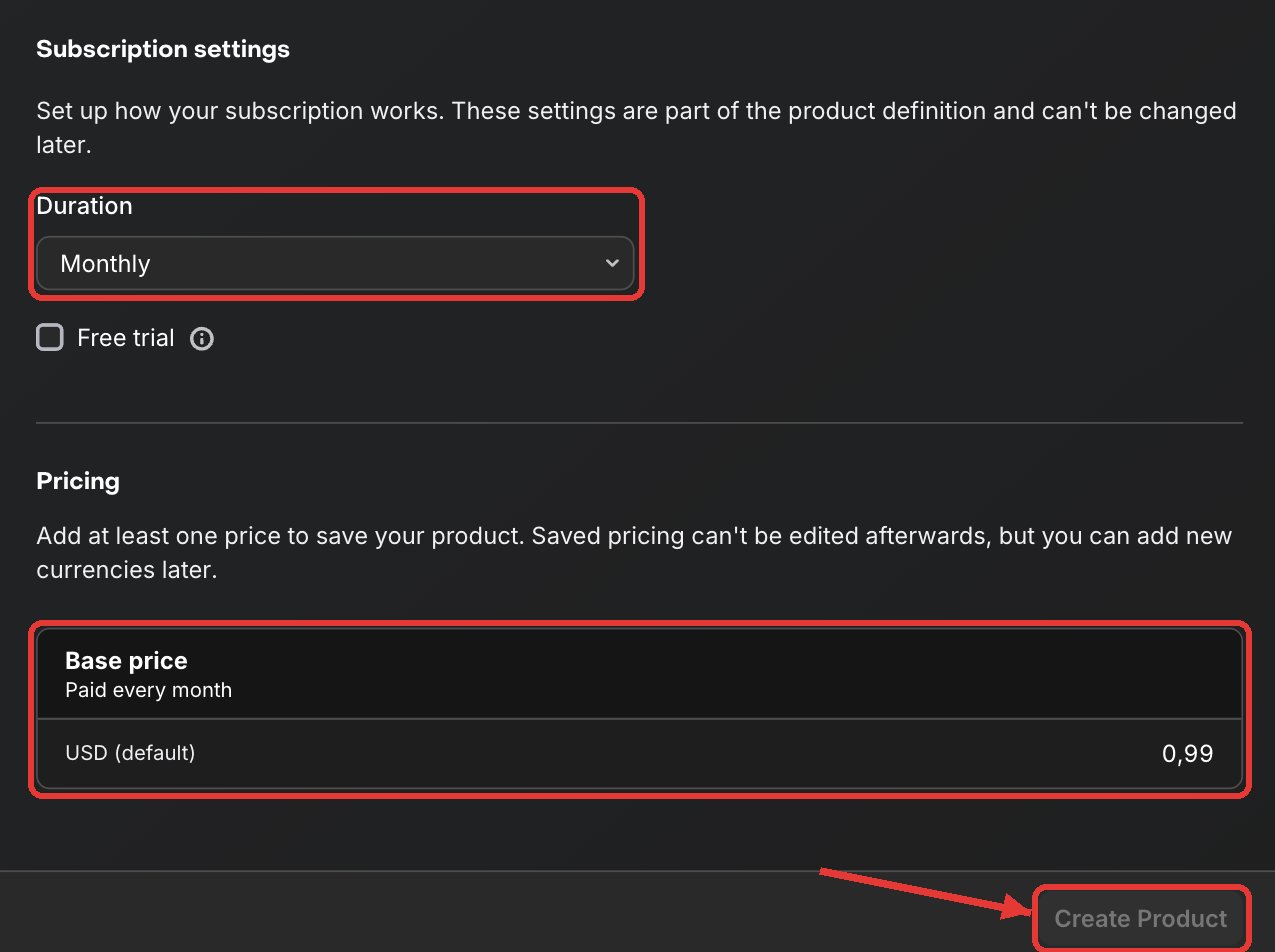
Pick the same duration, enter any non-zero price (for example 0.99), then click Create Product. Nothing is ever charged. RevenueCat doesn’t let you change a price once saved: to change it, create a new product.
Come back to Bloxks. Detection is automatic, and Connect and verify refreshes right away: Bloxks attaches the products to your premium access and to the offer shown by your paywall.
Before launch
Test mode checks your paywall and your premium access, not the stores. Before your first real sale, finish the store settings and do the real test from TestFlight and Google Play: Paywall and subscriptions.