
Apple notifications key
Create the key Apple requires to deliver push notifications, and add it to Bloxks once. 2 minutes.
Apple delivers push notifications only to apps whose developer holds a notifications key. One key covers every app of your Apple team, in TestFlight as in the App Store, and it never expires.
Publishing with your Apple ID? Bloxks creates this key for you during the publication: skip this page. It is only needed if you publish with an App Store Connect key, or if Bloxks could not create one (Apple allows two keys per team at most).
Before you start
- You need to be the Account Holder or an Admin of your Apple Developer account.
- Keep your Bloxks project open in another tab, on the Notifications tab.
1. Create the key at Apple
- Open developer.apple.com/account/resources/authkeys/list and sign in.
- Click the + button (or Create a key).
- Give it a name, for example Bloxks Push.
- Tick Apple Push Notifications service (APNs), then Continue, then Register.
- Click Download. Apple gives you a file named AuthKey_XXXXXXXXXX.p8. Keep it safe: Apple lets you download it only once.
On the same page, note the Key ID (10 characters, also in the file name).
2. Find your Team ID
Open developer.apple.com/account: the Team ID (10 characters) is in the Membership details box. Bloxks usually fills it in for you.
3. Add the key to Bloxks
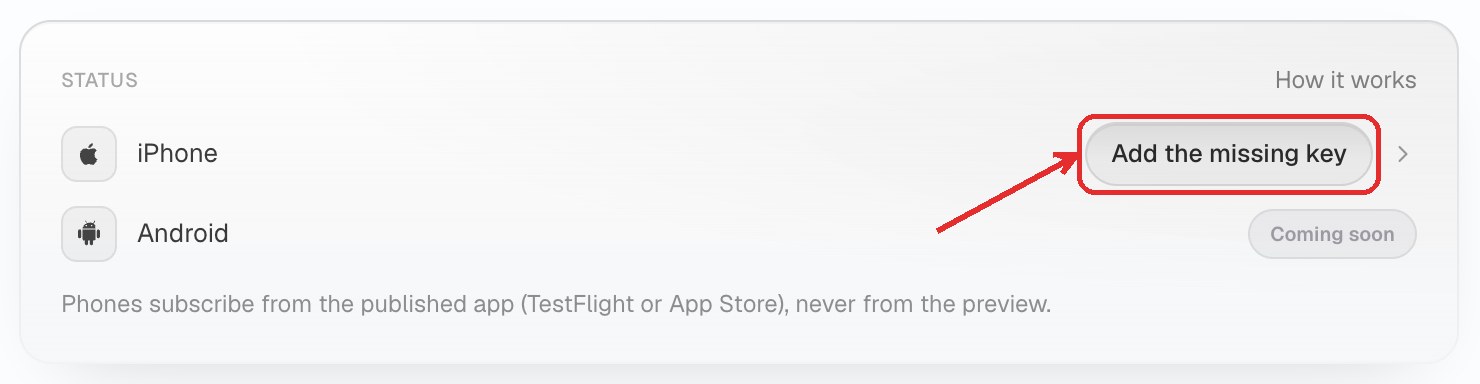
- In your project, open the Notifications tab. In the Status block, the iPhone line shows Add the missing key: click it, the line unfolds.
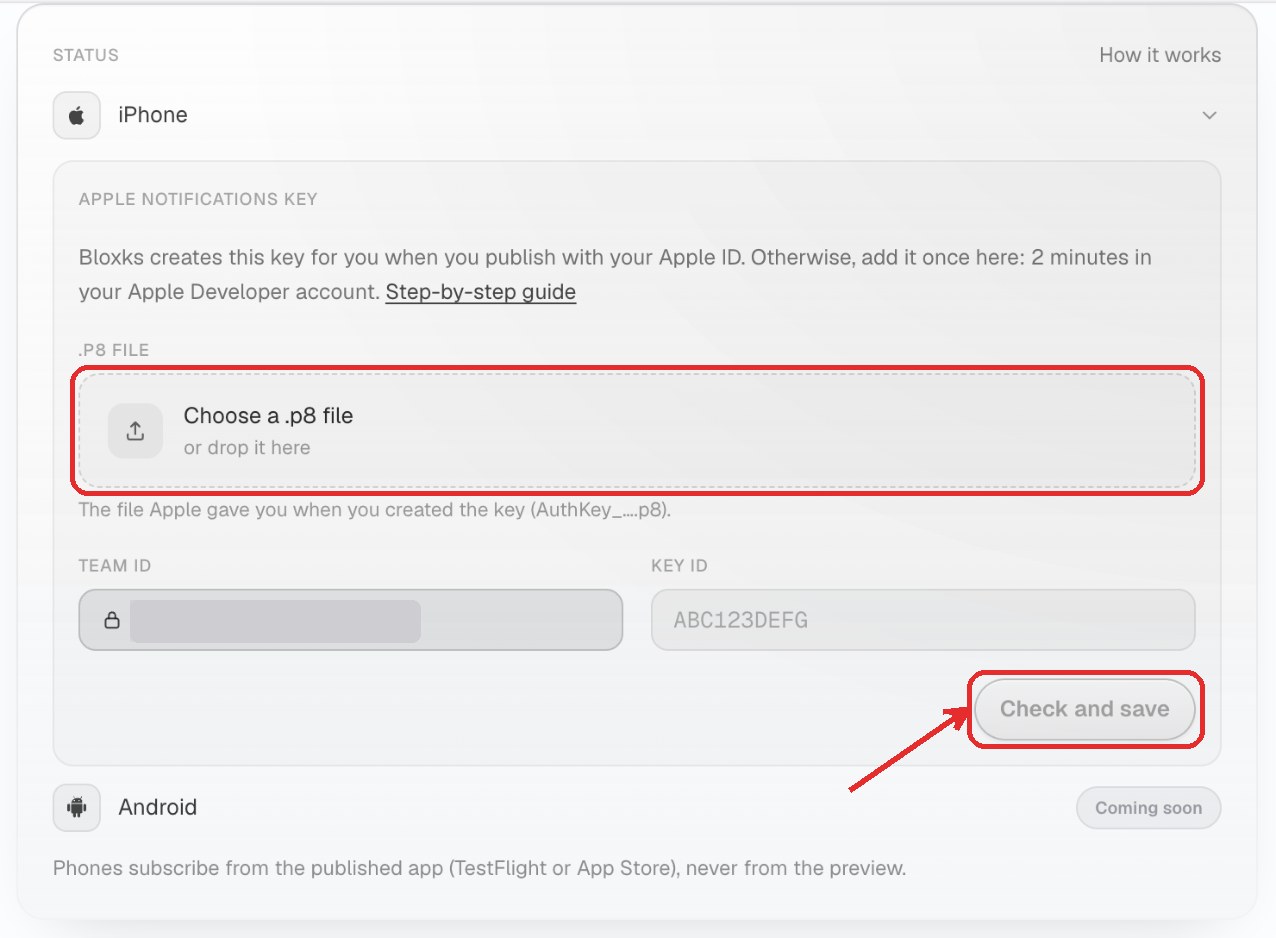
- Click Choose a .p8 file (or drop it on the frame) and pick the file you downloaded. The Key ID is read from its name by itself.
- The Team ID is already filled in when Bloxks knows your Apple team (locked: it is the team you publish with). Otherwise, type it.
- Click Check and save. Bloxks checks the key with Apple before saving it: a wrong Key ID, Team ID or file is refused on the spot.
Done when the key shows Connected, and the iPhone line shows Ready once push notifications are wired in your app. Every app of your team can now receive notifications.
Something refused?
- "Apple refuses this key": the Key ID or Team ID does not match the file, or the key was created without the Apple Push Notifications service box ticked. Create a new one.
- Apple will not let you create a key: your team already has two. Revoke one you no longer use (Apple lists what each key is for), or ask the Account Holder.